The Agents page
The Agents page
Section titled “The Agents page”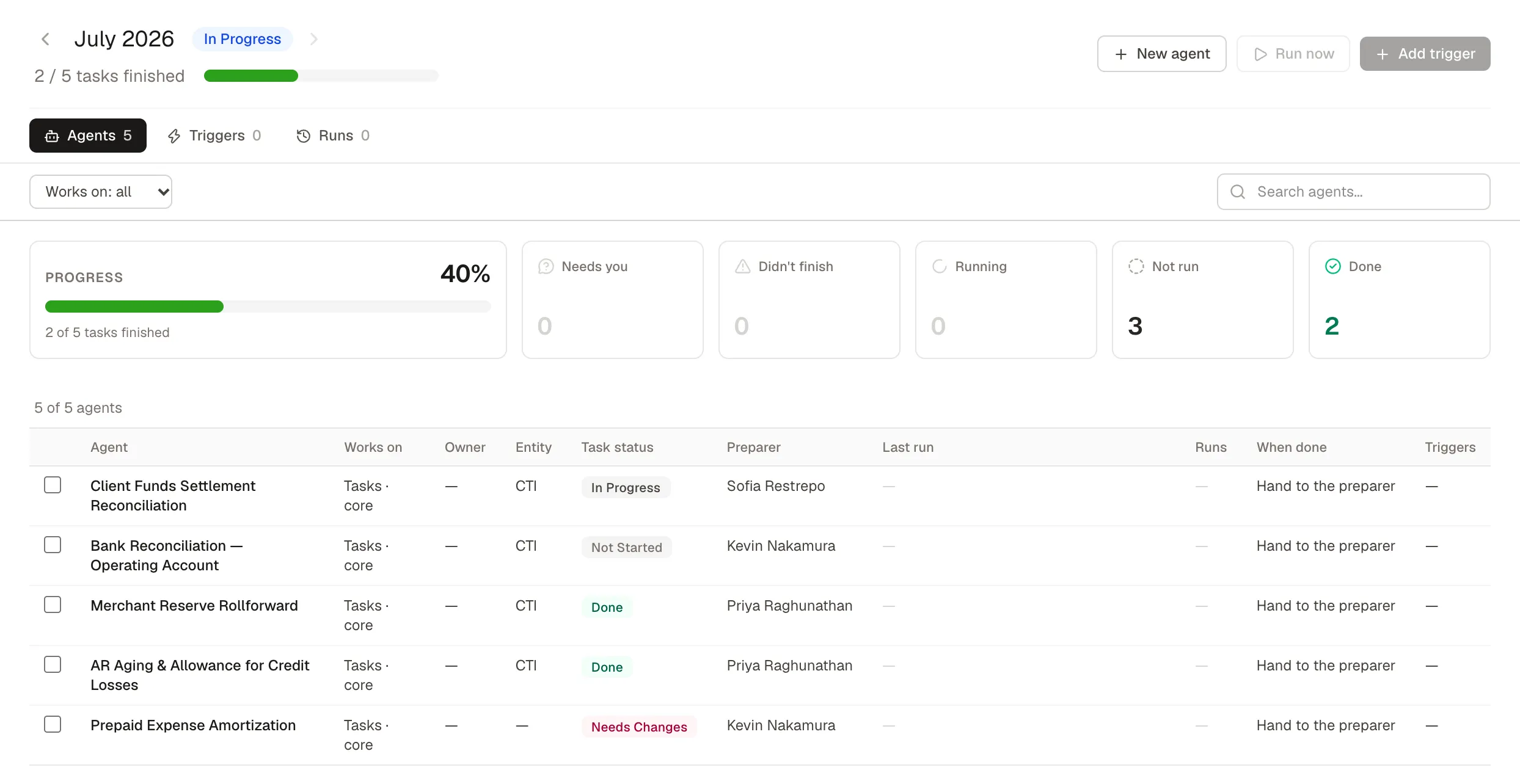
Agents lists every agent you can see. Seeing a template’s agent takes the See agents permission, or Edit agents. A role with See agents also has See templates. An agent of your own is seen by its editors, by whoever edits every agent and, for one on a reconciliation, by whoever has See agents and sees that reconciliation. You can filter the list by State (Setup, Active or Archived) and by Works on (Tasks, Reconciliations or General).
From the Agents page you can:
- click Run now to run the agents you pick;
- click Add trigger to run them on a schedule;
- click an agent to open its page.
An agent’s page
Section titled “An agent’s page”Each agent’s page shows its settings at the top: State, Runs as, Permissions, Works on and, for a task agent, When done. See Setting up an agent. From the page you can click Run now or Add trigger for that agent.
Below the settings are four tabs:
| Tab | What it shows |
|---|---|
| Setup | The agent’s instructions, project files, file templates, triggers and editors. |
| Runs | Every run of the agent. Click a run to open its chat. |
| Test runs | Every test run of the agent. See Testing an agent. |
| History | Each version of the agent’s instructions and files, and each time it was made active or put back in setup. |
A task agent’s page can also be opened from its template’s Agent tab.
Tasks that have an agent
Section titled “Tasks that have an agent”A robot icon marks each task that has an agent. It appears next to the task’s name on the Close list, on its card on the Board and in My Work, and in the Task column of the Reconciliations list. On the Close and Reconciliations lists, click the icon to open the agent. On a task or a reconciliation, you can also open it from Agent → View agent.