Chat
A chat is a conversation with an AI assistant that works in FullSeam. A chat works as you. It reads what you can see, and when it is allowed to change records, it changes only what you could change, under your name.
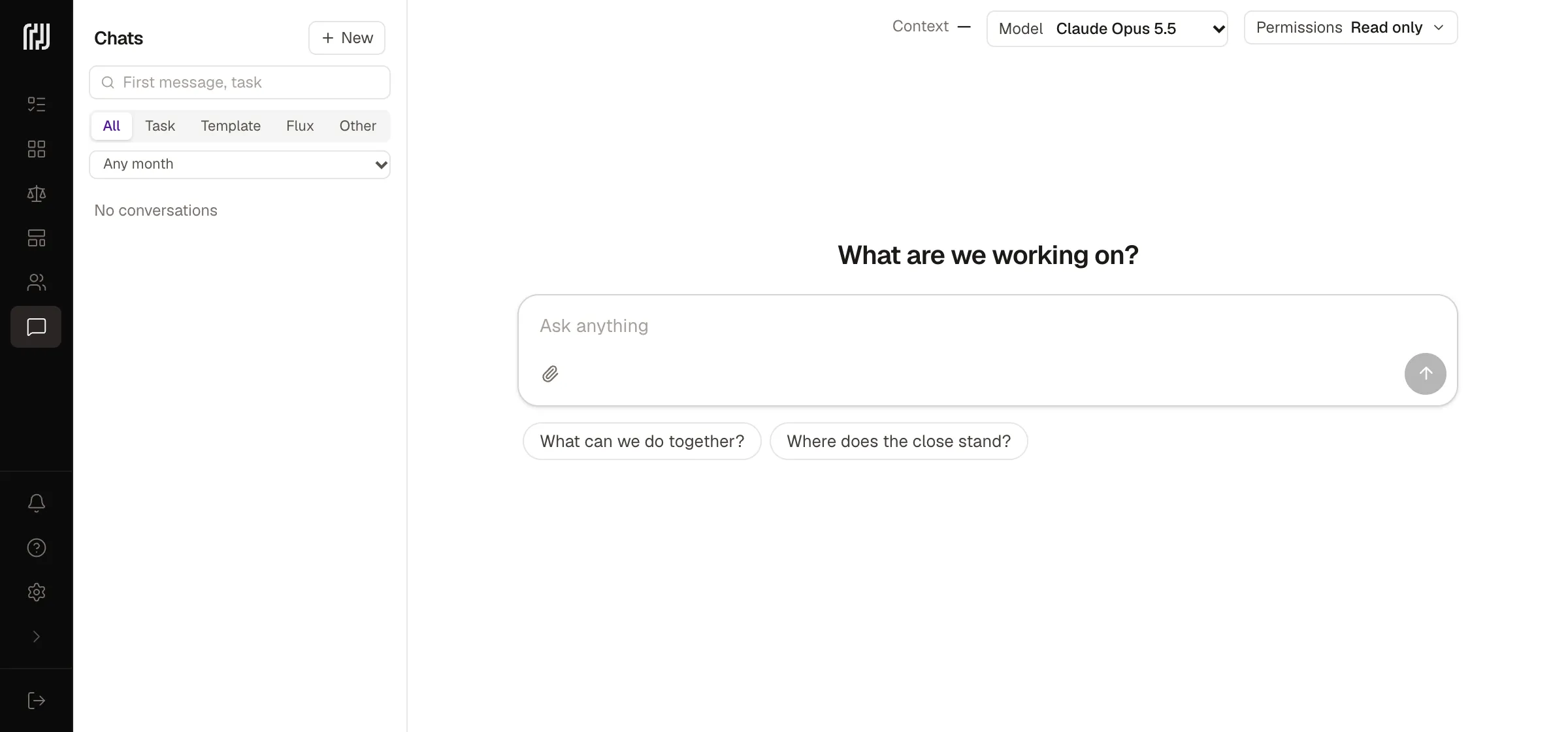
Where to open a chat
Section titled “Where to open a chat”There are two ways to work with a chat:
- FullSeam’s chat. Open it from Agents → Chats or Agent in the sidebar, from the Agent or Chat menu on a task, or from Chat on a task template or the flux page. See FullSeam’s chat.
- An external chat. Connect Claude, ChatGPT or another assistant to your company from outside FullSeam. See Claude and ChatGPT.
What a chat can do
Section titled “What a chat can do”A chat works through tools, such as reading a task, reading a file, reading the ledger, attaching a file, drafting an entry or moving a task. A chat is not limited to particular kinds of work: you can ask it for anything its tools can do.
To see a chat’s tools, open Permissions → Tools in the chat. The list depends on your permissions, on whether the chat is set to Read only or Read and write, and on which kinds of change are left on.
These are examples of what you can ask, not a list of what is supported:
| Ask | What the chat does |
|---|---|
| “Where does the close stand?” | Reads the period’s tasks and reconciliations, and says what is done, late, blocked or waiting for review. |
| “Help me load in my close checklist” | Reads a checklist you attach, and adds its tasks to the period with their preparers, reviewers and due dates. |
| “Let’s look for new prepaid expenses” | Reads the period’s ledger entries, picks out payments that cover later months, and lists them with their amounts and terms. |
| “Let’s draft every journal entry for the month” | Goes through the period’s tasks that end in an entry, builds the support for each, and drafts the entries for review, one task at a time. |
A chat can only change records if it is set to Read and write. Your company must also let chats change records, and your role must include Let chats change records. Your company sets the most any chat may change under Settings → Agents → Permissions.
Who can read a chat
Section titled “Who can read a chat”A chat you start is yours alone at first. The top of a chat on a task or a template shows Only you or Shared. Click it to see who can read the chat and who can write in it, by name.
| Chat | Who can read it | Who can write in it |
|---|---|---|
| A chat you started | Only you, until you share it. | You. |
| A shared chat on a task | Everyone who can see the task. | The task’s preparers and reviewers. |
| A chat on nothing | Only you. | You. |
| A run of an agent | Everyone who can see its work. | See Who a run acts as. |
You can set a shared chat back to Only you at any time. When someone else writes in a shared chat, it starts acting as them, and it is theirs from then on. Everyone who has written in a chat can still read it.
Once a chat on a task or a template changes something or records what it did, the people who can see that work see it under Agent activity, even if the chat is not shared. They see who ran it, when, what it recorded, the files it attached, and the changes it made.
A chat on a task whose documents are in a restricted folder can only be read by people who can see restricted folders.
Chats and agents
Section titled “Chats and agents”An agent is a saved process, and each run of it is a chat. A run can act as the Agent instead of as you; see Who a run acts as. A chat you open yourself, even on an agent, always acts as you.
Claude and ChatGPT
Section titled “Claude and ChatGPT”An external chat is given the same tools as FullSeam’s chat, and is held to the same permissions. Two things are different:
- FullSeam’s chat asks you before each change, unless you set it not to. FullSeam does not ask before an external chat’s changes. Instead, you allow them once, on the approval screen when you connect it.
- FullSeam’s chat runs calculations and builds workbooks in a workspace that FullSeam provides. An external chat uses its own.
To connect one, go to Settings → Agents → Claude and ChatGPT. See Claude and ChatGPT.