Task details
Open a task from My Work or the Close page’s list.
Header
Section titled “Header”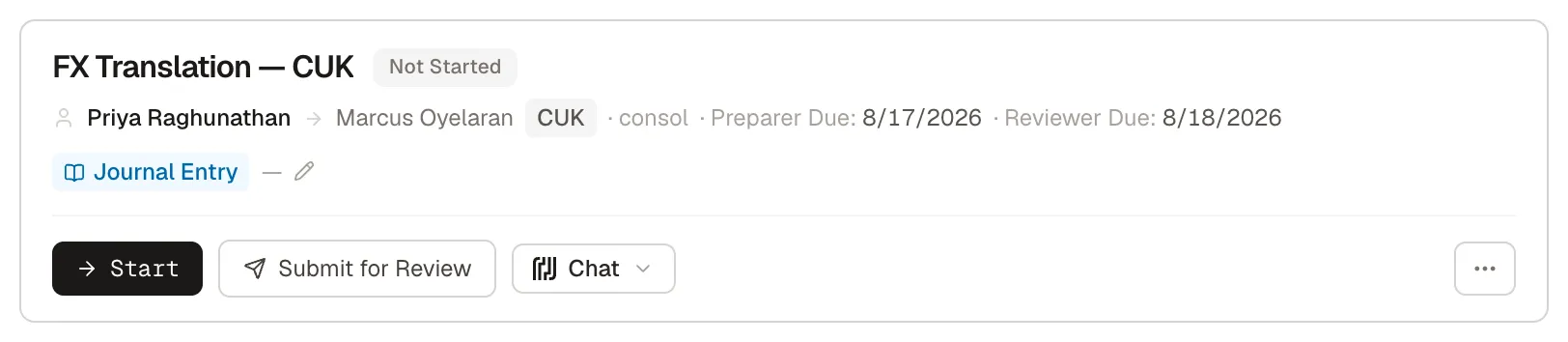
The header shows:
- the month and the task’s name, with its status beside it. The month opens the month’s task list, as you left it if you came from there. Where you came from somewhere else, Back to … under the name returns you there;
- the preparers → reviewers, with whoever acts next in bold;
- the entities, section and due dates;
- the task’s GL accounts, each with its reconciliation’s status and a link to it; past three, a count that opens the full list under Configuration;
- the agents tied to the task, where there are any;
- the buttons for the next step — for example Start and Submit for Review for the preparer, Review for the reviewer, and Unblock on a blocked task.
Results
Section titled “Results”Under the header, Results lists the deliverable and the task’s journal entries, each entry with its status, on one line. Click Results to open it: the deliverable, then each journal entry with its date, status and amount, and its lines. Click an entry’s arrow to fold it to one row.
Timeline and tabs
Section titled “Timeline and tabs”The page is in two halves: the Timeline on the left, and the tabs — Description, Configuration, Prior months, and Review on a checklist task — on the right. In a narrow window the Timeline is a tab of its own beside the others, and the page opens on it. A checklist task is in tabs at any width, the Timeline among them, so its checklist has the whole width.
A banner under the header shows the reviewer’s comment when changes are requested, what a blocked task is blocked on, the tasks this one is waiting on, or that the period is closed.
Additional actions
Section titled “Additional actions”at the right of the header opens the rest. Which appear depends on the task’s status and your permissions.
| Action | Does |
|---|---|
| Move to In Progress, Move to Not Started | Takes the task back a step — for example, takes back a submission before the reviewer acts. |
| Mark blocked | Sets the Blocked status on a Not Started or In Progress task, with what it is waiting on. |
| Reopen task… | Reopens a Done task, with a reason. The dialog says where it goes: to its preparer when the preparer reopens it (In Progress, or JE In Progress where it has a journal entry), to Ready for JE when it needs a journal entry it never booked, otherwise back to review. A task with no review goes back to In Progress. It also lists the task’s journal entries and the approved reconciliations that read its deliverable. |
| Override status… | Sets any status except Done directly, with a reason recorded on the timeline. |
| Copy Task | Makes a copy of the task, for the same or other entities. With more than one entity only. |
| Edit template | Opens the task’s template. |
| Archive, Restore | Removes the task from the period, or brings it back. Archived tasks aren’t rolled over. |
In Setup, a task is marked N/A from its Status cell on the Close list; afterwards, with Override status…. Archived tasks are shown on the Close page’s List when Archived is on.
Checklist tasks
Section titled “Checklist tasks”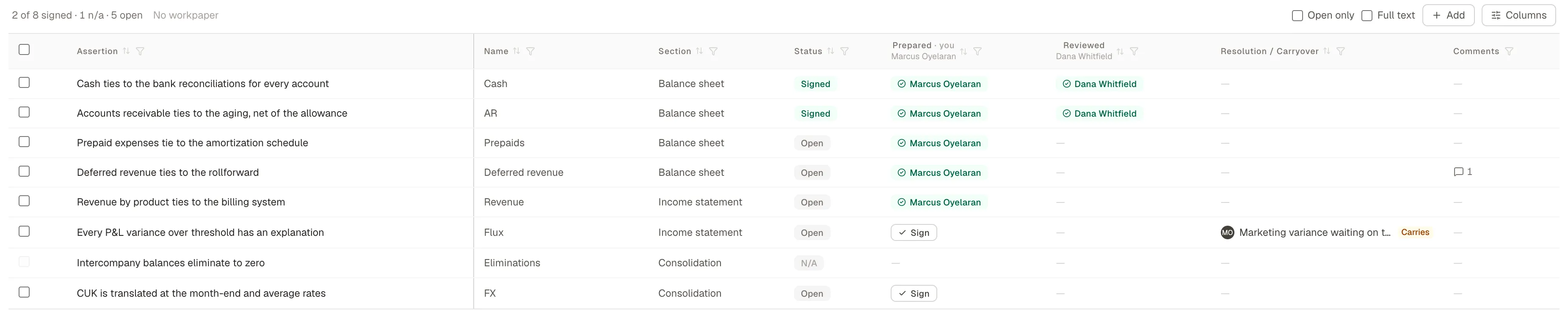
A task whose Type is Checklist, or that has checklist lines of its own or from its template, has a Review tab and opens on it. The tab holds the task’s checklist: one line per assertion, signed by each role the task assigns.
Above the table are the number of lines signed, the numbers N/A and open where there are any, and each deliverable with its version.
| Column | Shows |
|---|---|
| Assertion | What the line confirms. |
| Name | The line’s short name. |
| Section | The group the line belongs to. |
| Status | Open, Signed or N/A. |
| Prepared, Reviewed, Final | One column for each role on the task, headed with the people in it. A signed cell names who signed; point at it for when, and the deliverable version it was signed over. Amber when the deliverable has changed since. Final is optional unless it is the task’s only role. |
| Resolution / Carryover | How the line was settled, or why it goes to next month, and how many months it has carried. |
| Comments | The number of comments on the line. |
| Kind | Hidden unless turned on under Columns. |
| Control | Does |
|---|---|
| Sign | Signs the line in your column. Click your own signature to withdraw it. |
| Sign as prepared, Sign as reviewed, Sign as final | Signs the selected lines. Shift-click selects a range. |
| Mark N/A | Sets the selected lines aside for this month. |
| Remove | Removes the selected lines and their signatures. With Edit the checklist. |
| Open only | Shows only lines with Open status. |
| Full text | Shows resolutions and comments in full in the table. |
| Add | Adds one assertion, or imports them from an .xlsx, .xlsm or .csv file. With Edit the checklist. |
| Columns | Shows and hides columns. |
Click a line to open it. The dialog shows the assertion in full, a signature for each role, the resolution, and the comments. Whoever can write the resolution can also set Carry to next month. Comments take screenshots and files, and can @mention anyone who can see the task. Below them are Mark N/A (Reopen on an N/A line) and, with Edit the checklist, Reword and Remove.
Who signs
Section titled “Who signs”| Column | Signed by |
|---|---|
| Prepared | The task’s preparers, with Prepare tasks. |
| Reviewed | The task’s reviewers, with Review tasks. |
| Final | The task’s second reviewers, with Review tasks. |
Nobody signs another person’s column or over another person’s signature, and one person gives one signature per line. Where one person may prepare and review, they can sign Prepared and one review on the same line.
Mark N/A, Reopen and the resolution are for anyone who signs one of the line’s columns. Someone @mentioned on a line can also write its resolution.
Once the task’s entity or the period is closed, lines can only be commented on.
Submitting and approving
Section titled “Submitting and approving”| Move | Needs |
|---|---|
| Submit for review | Every line signed as Prepared. |
| Approve to second review or Ready for JE | Every line signed as Reviewed. |
| Approve to Done, or Done on a task nobody reviews | Every line signed in every column but an optional Final. |
A line marked N/A needs no signatures. A resolution set to carry doesn’t stop a signature.
Next month
Section titled “Next month”Next month’s task starts with the same lines, unsigned, or with its template’s checklist where the template has one. Resolutions set to carry are copied onto them; comments are not.
Changing the Type from Checklist, before the task is done, offers to remove the lines, with Edit the checklist. The box is selected; clear it to keep them.
Filters, sort, columns and the open line are in the page’s address, so a copied link opens the same view.
Description
Section titled “Description”The task’s description, from its template. Edit it on the template; it can be written in Markdown, and a line break is kept as written.
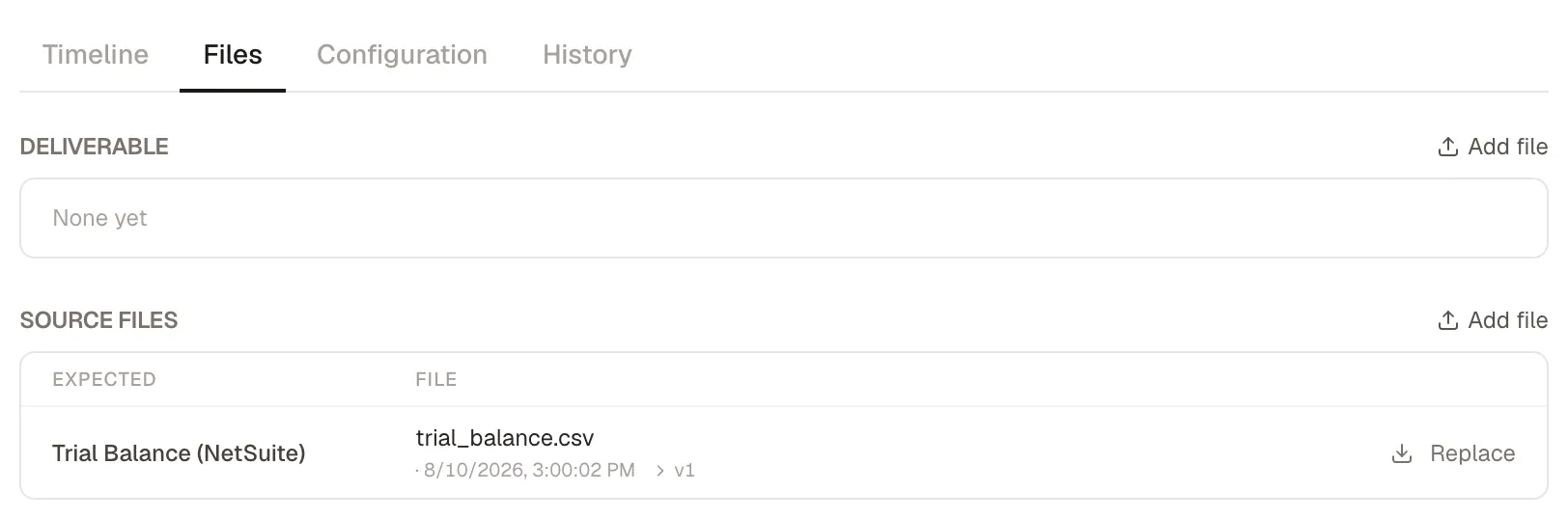
| Section | Holds |
|---|---|
| Deliverable | The finished work the reviewer signs off. |
| Source files | What it was prepared from. |
Each file template the task produces or uses has its own row, with Add file (Add link where your organization only allows links); once a file is there, the row shows Replace. For anything else, use the section’s Add file button. Whether you can upload, link or both is an organization setting. Replacing a file keeps the earlier versions.
On a Done task the deliverable can’t be replaced, removed or unmarked: reopen the task first. Source files can still be added and removed.
Timeline
Section titled “Timeline”The stages the task goes through and everything that has happened to it: submissions, reviews, file changes, date changes and comments. Comment in the box at the bottom. With Slack connected, comments are synced between the task’s Slack thread and this view.
Configuration
Section titled “Configuration”The task’s type, whether it is reviewed, GL accounts, name, people, due dates, classification and dependencies. Each GL account shows its reconciliation’s status and links to it. On a task made from a template, Reviewed is set on the template; the link beside it opens the template. Before work starts, changes save as you make them. Once the task is under way, click Unlock to edit, make the changes and click Save changes; moving a due date then needs a reason.