Close
Close → Checklist in the sidebar opens the period in progress.
Header
Section titled “Header”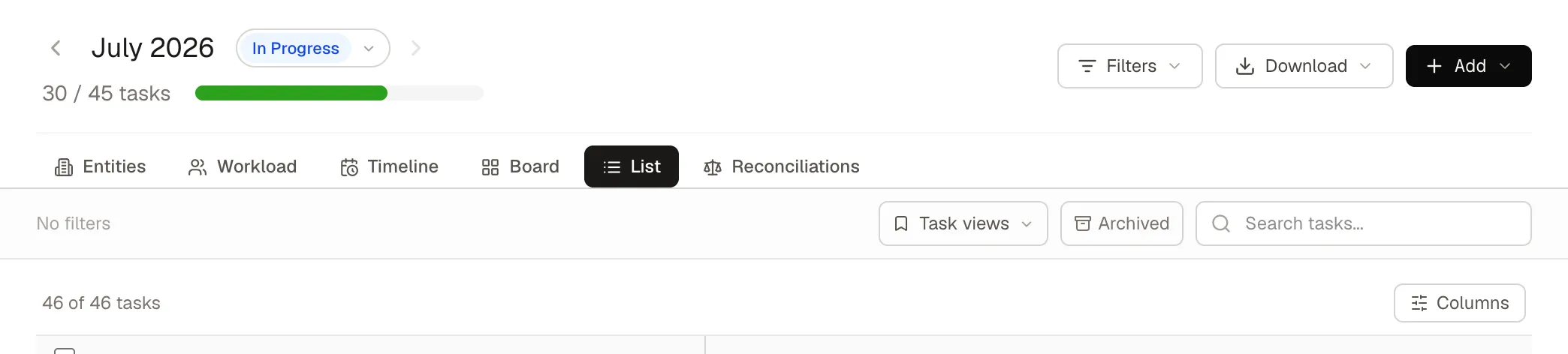
| Control | Does |
|---|---|
| ‹ July 2026 › | Moves between periods. Click the period to pick one. Filters and columns are kept. |
| Tasks done · recs approved | How far through the period is, each kind counted on its own. Click one to open its list. |
| Stage | The period’s stage, per entity. Its menu opens, closes and reopens the period; see Managing periods. |
| Download | Status CSV of the list as shown, or the audit bundle; see Downloading. |
| Add | Adds a task or imports a list; see Adding a task. |
The tabs below the header are Entities, Workload, Timeline, Tasks and Reconciliations. Tasks is one list shown three ways: List, Board or Calendar, switched at the right of the bar under the tabs. The rest of this page is about List.
Entities, Workload and Timeline
Section titled “Entities, Workload and Timeline”These three count tasks and reconciliations; Type, at the right of the bar under the tabs, narrows them to one. See Workload and Timeline. Everything under Filters narrows them as it narrows List (group, entity, filter tag, person, role, whose turn and due), and so does the Status column’s filter. Setting one keeps you on the tab you are on. Click an entity card to open its work: on Reconciliations when all of it is reconciliations, otherwise on List. The entity stays picked on both tabs.
Filters
Section titled “Filters”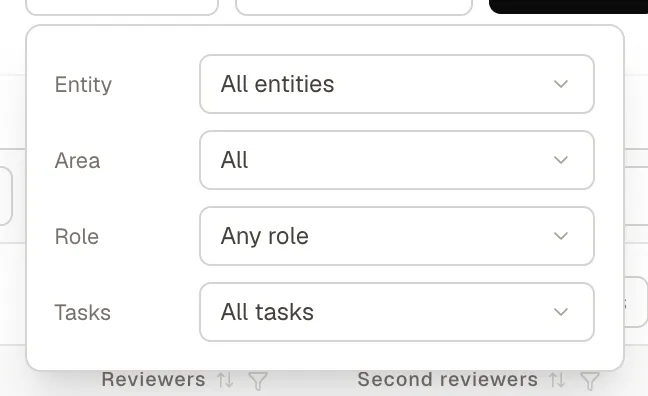
- Filters, at the left of the bar under the tabs, sets group, entity, filter tag, person, role, whose turn and due. Due takes Overdue, Due soon or both. For a status, use the Status column’s funnel; for no preparer, the Preparer column’s (Blank).
- Search tasks… matches task name, section, people and GL account numbers.
- The funnel on a column header filters that column. Switch it to Is not one of to leave values out. Date columns take a range.
Each active filter shows as a pill under the tabs. Click its × to remove it, or Clear all.
Columns
Section titled “Columns”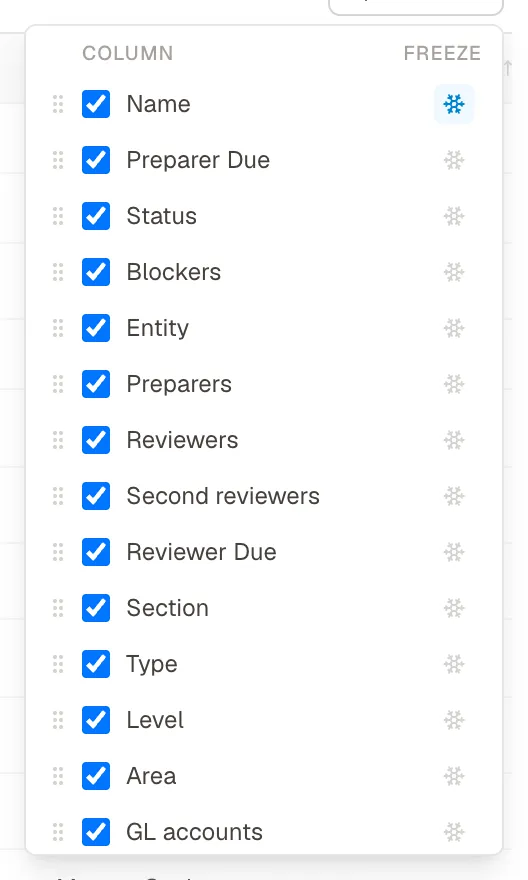
Columns opens the column menu:
- Select a column to show it; clear it to hide it.
- Click ❄ to freeze a column on the left, so it stays in view when you scroll.
- Drag a column in the menu, or its header in the table, to move it.
- Reset columns returns to the default layout.
Drag the edge of a header to resize a column; double-click the edge to reset it. Click a header to sort; click again to reverse, a third time to stop.
Saved views
Section titled “Saved views”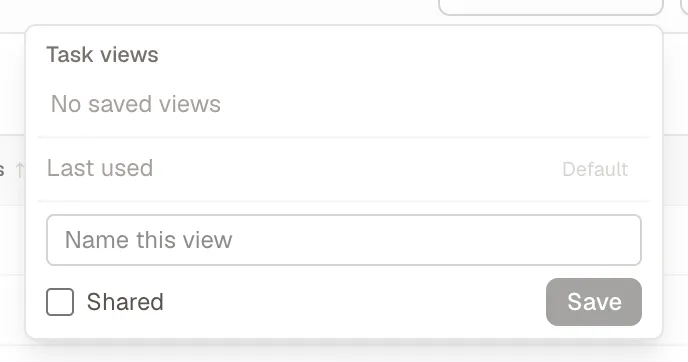
Everything above — tab, filters, search, sort and columns — is in the page’s address, so you can copy the address to share a view.
Task views keeps a view by name. Type a name under Name this view, select Shared to let your team use it, and click Save. To have a view applied whenever you open a period, click Default next to it.
Editing in the list
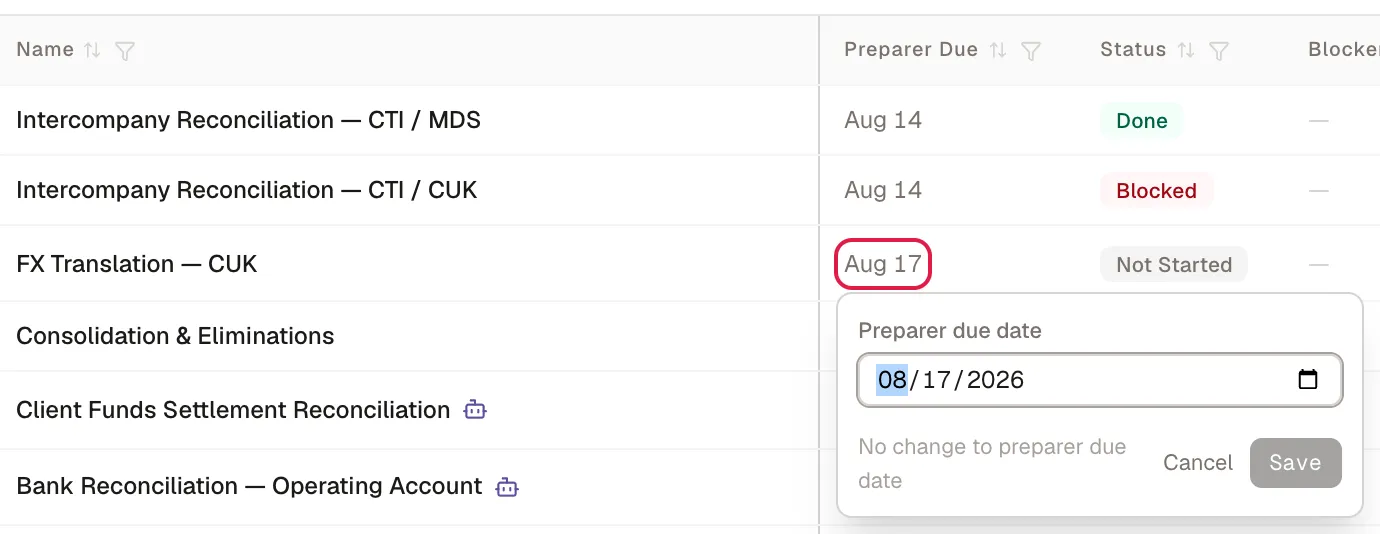
Section titled “Editing in the list”Many fields can be changed without opening the task: click the cell, change the value, and click Save (or press Enter).
| Column | Changes |
|---|---|
| Status | Moves the task on: a menu of the steps you can take, such as Submit for Review… or Review…, which open the same dialogs as on the task page. |
| Preparer Due, Reviewer Due | The due date. On a task already under way, a reason is required. |
| Preparers, Reviewers, Second reviewers | Who is assigned. |
| Section, Type | How the task is classified. Changing the type can move the task’s status, and says so first. |
| JE # | The journal entries booked. |
| GL accounts | The accounts the task covers. |
| Blockers | What the task is blocked on, with Mark blocked and Unblock. |
| Dependencies | The tasks it waits on, shown as the number finished out of the total. |
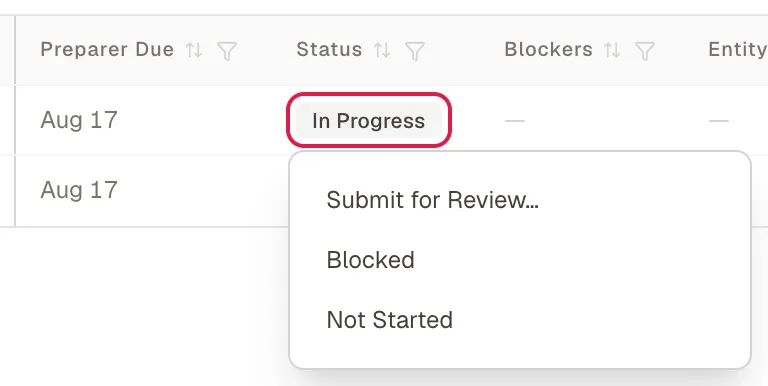
A step that needs the JE # opens the task instead.
A cell can be clicked only if you may make that change. On a Done task only Type, JE #, GL accounts and Dependencies can change; on an archived task or a closed entity’s, nothing can.
Bulk actions
Section titled “Bulk actions”Select tasks with the checkboxes; the bar above the list offers:
| Control | Does |
|---|---|
| Status | Submits, approves, signs off, moves, archives or restores the selected tasks. The dialog lists which will change and which are skipped, and why. |
| Edit | Sets people, dates or section on all of them. People chosen replace each task’s list. If any selected task can’t be changed, nothing is changed. |
| Follow up | Posts a reminder in each task’s Slack thread to the people it’s waiting on. |
Status and Follow up check each task separately and skip those they can’t act on, saying why.