Adding a task
Adding tasks needs permission to add tasks, and the period must not be closed.
Add one task
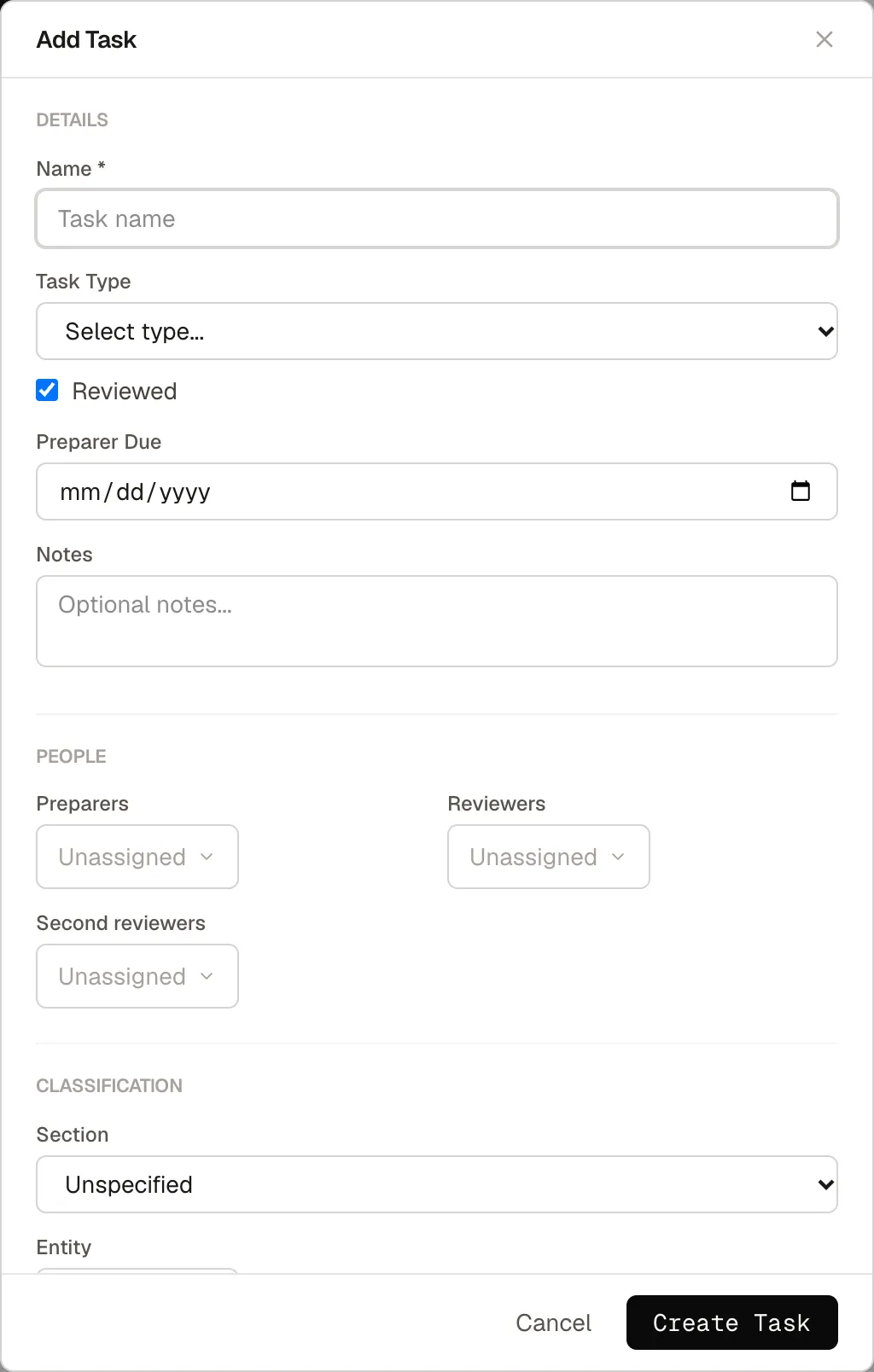
Section titled “Add one task”- On the Close page, click Add → Add task.
- Enter a Name, and choose the Task Type and Preparer Due.
- Choose the Preparers and the Reviewers. For a task nobody reviews, untick Reviewed under Task Type; it then takes no Reviewers.
- Under Classification, choose a Section if your organization uses them and, with more than one entity, the entity the task is for. Only people who can work on that entity can be assigned.
- Click Create Task.
The task starts as Not Started. Rolling over copies it into the next period.
Import a list
Section titled “Import a list”- Click Add → Import list, and choose the period under Period.
- Download the template for the expected columns and your organization’s allowed values, and fill it in — or use your own .xlsx or .csv.
- Choose the file. Columns are matched by their headers; check them on the Columns step.
- Match any values FullSeam didn’t recognize: people by name or email, entities by code or name. A row naming an entity that doesn’t exist is left out; add the entity in Settings and click Check again. With one entity, every row is for it.
- On Rows, check what will be created. Rows already in the period are skipped, so importing the same sheet twice adds nothing.
- Click Create N tasks.
An import goes into one period, and posts nothing to Slack.
The Review column says whether a task is reviewed: Yes or No, and blank is Yes. A task marked No takes no reviewers and cannot be imported in a review status. A JE Creation task is reviewed whatever the column says.