Reviewing a reconciliation
1. Find reconciliations awaiting review
Section titled “1. Find reconciliations awaiting review”Open My Work and change Any role to I review: reconciliations you can review are under Ready for me. Or open Reconciliations, click Filters, set Role to I review, and set the Review status menu under the toolbar to Submitted.
2. Check the work
Section titled “2. Check the work”- Open the reconciliation from its account number or name.
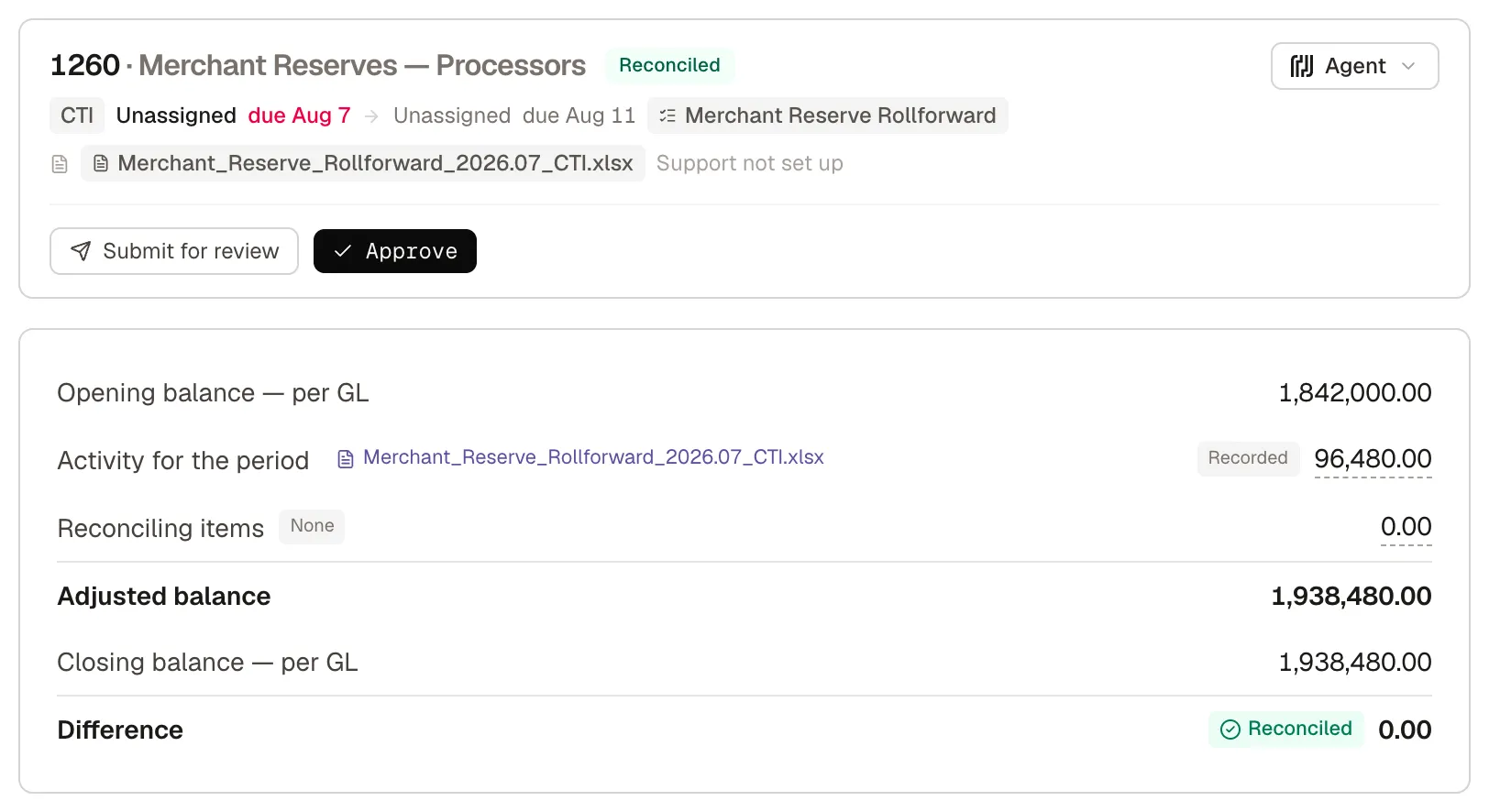
- Compare the support, from the header or the Sources tab, with the support figure in the summary.
- In the summary, check the support figure, the reconciling items, the adjusted balance, the closing balance per GL, and the Difference with its status. A reconciliation covering several accounts lists each account above the summary.
- On Reconciling items, check each item’s amount, description and age.
A reconciliation with no submitter was submitted automatically: its account asserts no activity and the balance didn’t move. Its support figure is the opening balance, labelled No activity, and its timeline shows “Sent for review automatically”.
3. Raise points
Section titled “3. Raise points”On the Timeline tab, enter a point and click Comment; the reconciliation stays where it is. To send it back to the preparer with the point as the note, click Comment and return. Click Close on a point once it is answered. Open points don’t prevent approval.
4. Approve or return
Section titled “4. Approve or return”- Approve signs the reconciliation off and locks it. In the grid, click your name in the Sign-off column.
- Return (Return to preparer in the grid) sends a submitted reconciliation back as Changes Requested.
Your organization’s sign-off settings can add requirements; see Reconciliation.
Approve several reconciliations
Section titled “Approve several reconciliations”- Select the reconciliations in the grid.
- Click Review → Approve.
- If any are Unreconciled, confirm that you have reviewed them.
- Click Approve.
The result lists any that were not approved, and why.
Work you prepared
Section titled “Work you prepared”You can’t approve a reconciliation you submitted, are the named preparer on, or whose current evidence you supplied. See Permissions.
Where your organization lets one person prepare and review, a reconciliation you are named as both preparer and reviewer on is the exception: you can approve it.
Reopen an approved reconciliation
Section titled “Reopen an approved reconciliation”Click Reopen. It returns to In Progress and the approval is removed.