Preparing a task
The steps a task goes through depend on its type; see Task.
1. Find your task
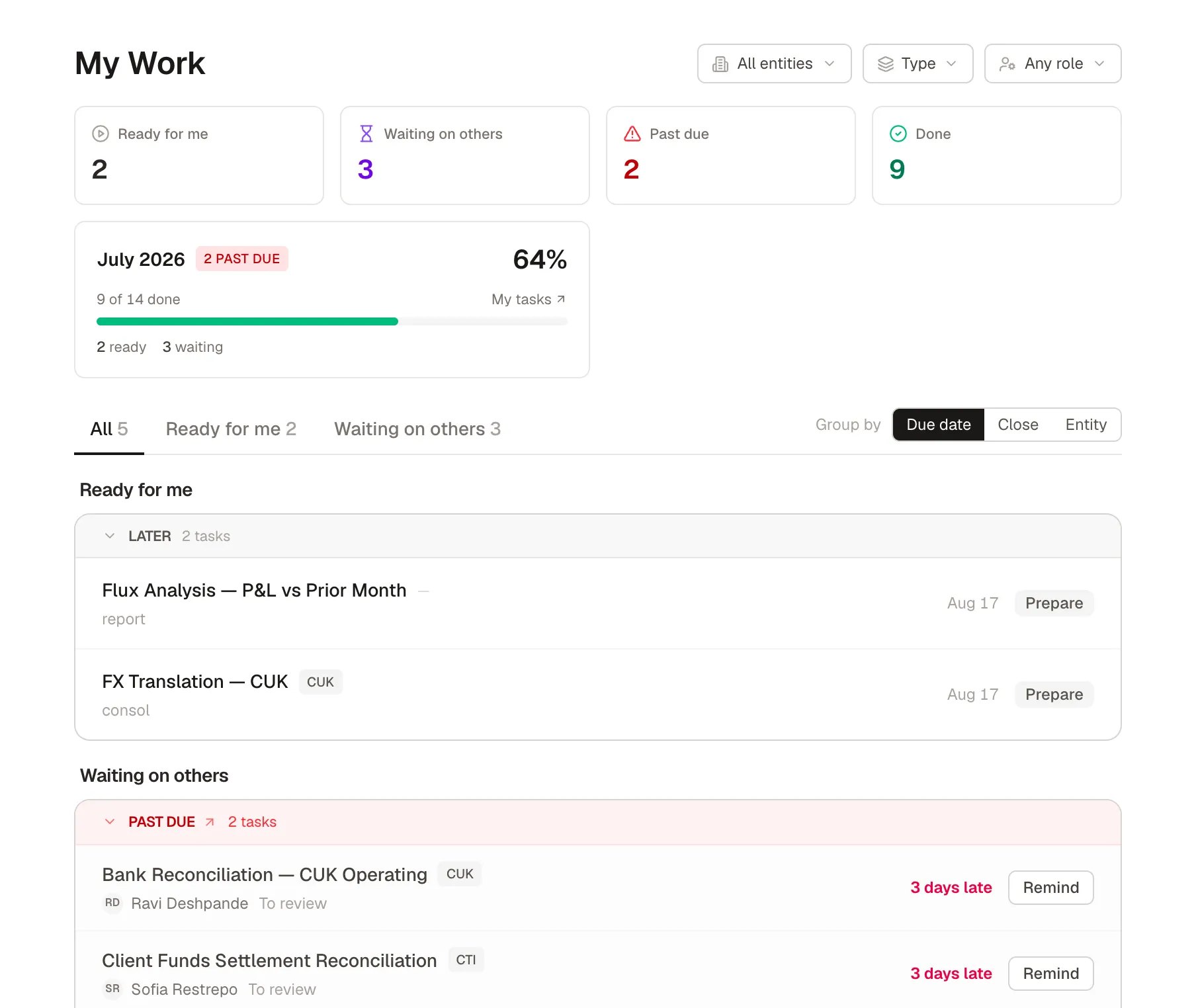
Section titled “1. Find your task”Open My Work. Tasks and reconciliations awaiting you are under Ready for me; set Type to Tasks to see only tasks. Tasks to prepare show Prepare as the next action. Past due shows only overdue tasks.
2. Start preparation
Section titled “2. Start preparation”Open the task and click Start. The status changes to In Progress. If the work is already complete, you can submit directly from Not Started.

3. Attach deliverables
Section titled “3. Attach deliverables”- Open the Description tab and go to Files.
- Attach the finished work under Deliverable and the documents it was prepared from under Source files. Use Add file on an expected file’s row, or the section’s Add file button for anything else. (Where your organization allows only uploads or only links, the button reads Upload or Add link.)
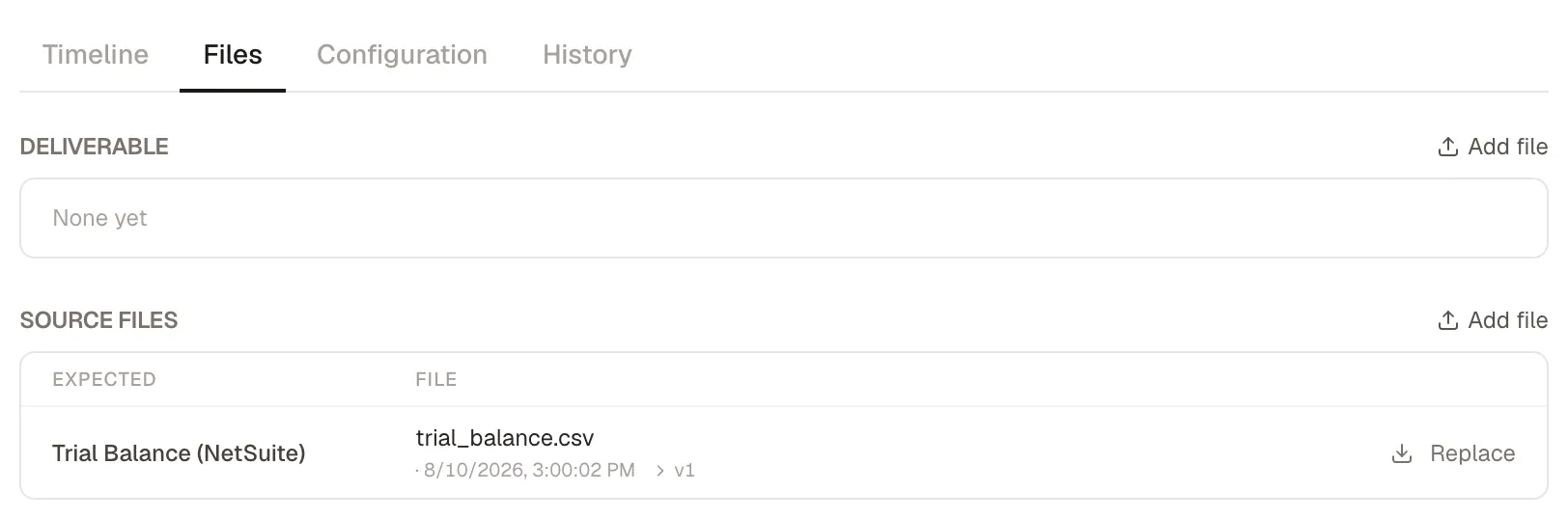
You can also attach the deliverable in the Submit for Review dialog in the next step.
4. Submit for review
Section titled “4. Submit for review”- Click Submit for Review.
- Attach any required deliverable still missing. Submit is unavailable until each one is attached.
- Optional: add a Note for the reviewer.
- Optional: if the journal entry is already booked, select Journal entry booked and enter the JE #.
- Click Submit.
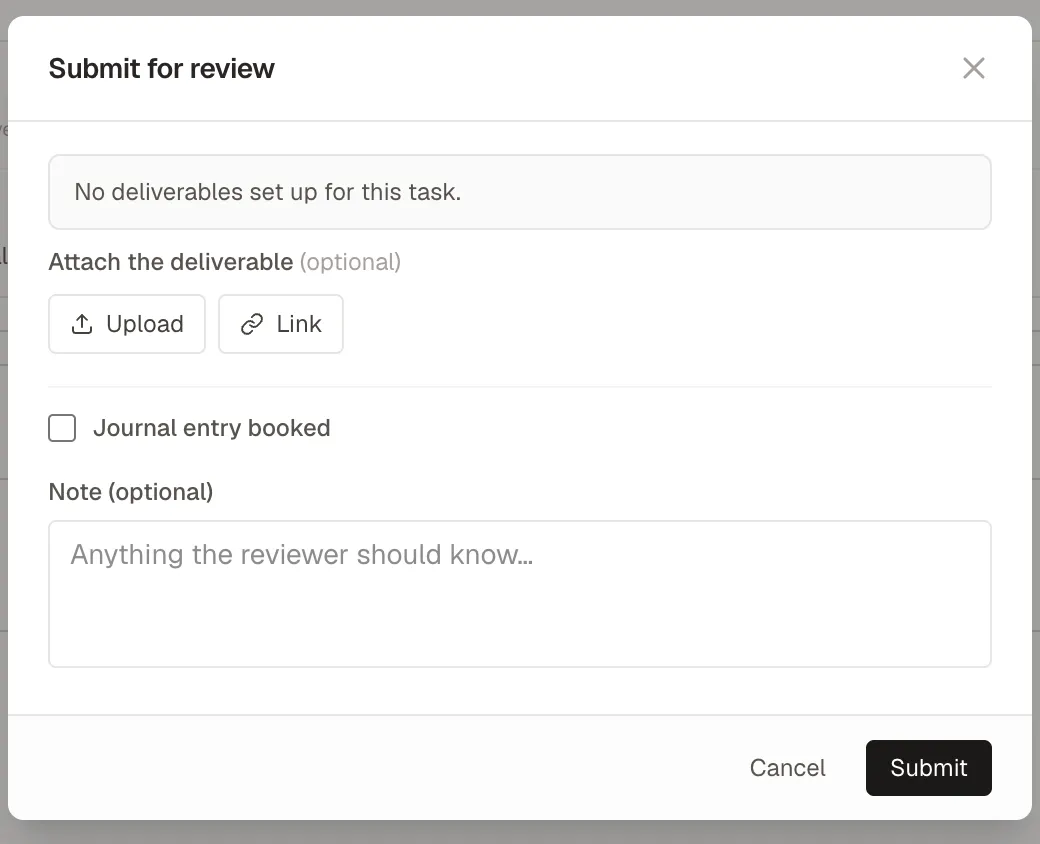
The task moves to In Review, or to JE Review if a booked entry was included.
You can also submit from the Close page’s list: click the task’s status and choose Submit for Review…. The same dialog opens. See Editing in the list.
5. Respond to requested changes
Section titled “5. Respond to requested changes”A returned task shows Needs Changes, with the reviewer’s comment at the top.
- Make the changes the reviewer asked for.
- Click Send to Reviewer. The Send back to reviewer dialog opens.
- Under Message to reviewer, say what you changed. Attach an updated deliverable if it changed.
- Click Send to reviewer.
The task returns to the first reviewer, even if it came back from second review.
6. Record and submit a journal entry
Section titled “6. Record and submit a journal entry”When the task reaches Ready for JE:
- Click Mark JE In Progress.
- Book the entry in your accounting system.
- Click Send JE for Sign-off, enter the JE # and, if there is one, a link.
- Click Send for sign-off.
The task moves to JE Review, and is Done once the approver signs off: whoever gave final approval, the second reviewer if there is one. If the approver sends the entry back, the task returns to JE In Progress; correct the entry and send it for sign-off again.
Tasks without review
Section titled “Tasks without review”When a task with Reviewed unticked is complete, click Mark Done.