Claude and ChatGPT
A chat you run outside FullSeam, such as Claude or ChatGPT, can work in your organization’s close. It signs in as you, and is held to your permissions.
Who can connect
Section titled “Who can connect”Connecting takes the Connect an external chat permission. For the external chat to change anything, it also takes Let chats change records. Where your organization has the Chat Read and Chat Read and write roles, they carry these. Otherwise someone who manages roles adds them to a role on the Team page under Roles. See Permissions.
With Connect an external chat, Settings → Agents shows the Claude and ChatGPT and Access tokens sections.
An external chat can’t be connected while logged in as someone else.
Connect by signing in
Section titled “Connect by signing in”- Open Settings → Agents → Claude and ChatGPT.
- Under Where you work, choose Claude or Cowork, Claude Code, ChatGPT, or Another product.
- Follow the numbered steps shown for it. They give your organization’s
address, which ends in
/api/mcp/, and where to enter it. - When the external chat asks, sign in to FullSeam. The approval screen opens.
- Check the screen and click Connect.
The approval screen
Section titled “The approval screen”The screen is headed Connect and the name the external chat gave itself.
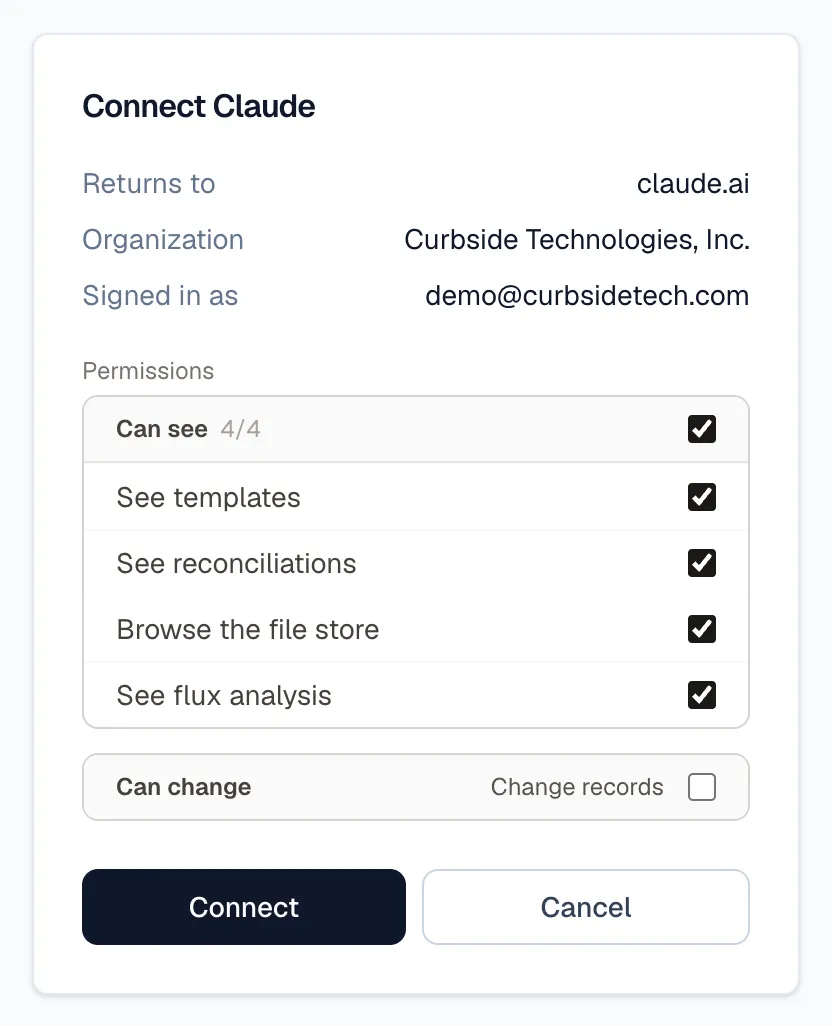
| Shown | Meaning |
|---|---|
| Returns to | The site the external chat goes back to once connected. An external chat chooses its own name; it can’t choose this. |
| Organization | The organization it will reach. |
| Signed in as | The person it will work as. |
| Can see | Your permissions to see things. Clear one to leave it off this connection. |
| Change records | Selected, the external chat can make changes. Cleared, it reads only. Offered where your organization lets chats change records and your role has Let chats change records. |
| Can change | Shown once Change records is selected: the kinds of change, grouped as Tasks, Templates, Reconciliations and Flux analysis. Clear one to leave it off this connection. They are described under What it can change. |
Connect lets that external chat work in the organization as you, with what is selected. Cancel connects nothing.
Connected chats
Section titled “Connected chats”Settings → Agents → Claude and ChatGPT lists what is connected under Connected chats: external chats that signed in, and access tokens.
| Column | Meaning |
|---|---|
| Name | The external chat’s name, or the token’s. |
| Connected by | Signing in, or Access token. |
| Person | Who it works as. |
| Access | Read only or Read and write. |
| Last used | When it last made a request. |
Click a row to see who authorized it, where a signed-in external chat returns to, and what it carries. Click the bin on a row, then Disconnect or Revoke, to end it. The next request is refused. People with permission to manage everyone can also end other people’s.
A connection stops working when:
- it is disconnected;
- its person’s account is deactivated, or they no longer hold Connect an external chat;
- its person is removed from the organization, even if added back later;
- it goes unused for 90 days. Connect again to approve it afresh.
An access token also stops working when it expires.
Access tokens, for scripts
Section titled “Access tokens, for scripts”A script, or a machine with no browser to sign in on, uses an access token in place of signing in. For Claude, ChatGPT or another product, sign in instead: a sign-in keeps no key in a file.
- Open Settings → Agents → Access tokens.
- Enter a name and choose when it expires.
- Select Change records if it is to make changes, and clear any permission or kind of change to leave off it.
- Click Create. The token is shown once: copy it then.
The script sends the token with each request, as
Authorization: Bearer followed by the token.
Revoke a token from its row under Connected chats. A person holds at most three working tokens at a time.
What an external chat can do
Section titled “What an external chat can do”An external chat, or a script with a token, reads what its person may see. It changes something only where all of these hold:
- your organization lets chats change records, and allows that kind of change, under Settings → Agents → Permissions;
- the person’s role has Let chats change records;
- the connection or token was made with Change records selected, and with that kind of change left on;
- the person has the permission for that change in FullSeam.
| Area | Reads | Changes |
|---|---|---|
| Tasks | Tasks, files, comments, timeline, last month’s version. | Adds a task, attaches or removes a file, comments, moves a status, sets a task’s accounts. |
| Templates | Templates, their agents and project files. | Makes a template, writes its agent’s instructions, says which file templates it reads and makes, saves or removes project files. |
| The books | Chart of accounts and balances; ledger entries with permission to see ledger detail. | Drafts a journal entry on a task, or attaches one already booked, where your organization keeps entries in FullSeam. |
| Reconciliations | Reconciliations and their support. | Sets up and prepares a reconciliation, and submits, withdraws, approves, returns or reopens it. |
| Flux analysis | Movements and explanations. | Drafts an explanation, comments. |
| Files | A task’s files and the connected file store. What a file in the store says takes the Let chats read the file store permission, and a restricted folder takes See restricted folders; see Permissions. | Attaches a file by upload, by link or from the file store. A deliverable, or a file for one of the task’s file templates, goes into the file store where your organization keeps files there. |
| Company notes | The notes, and these help pages. | Writes a note. |
| Agent activity | Records what it did on a task. |
A run an external chat records on a task is listed on the task’s History tab under Agent activity, with the person it worked as and the name the external chat gave for itself. A change made without a recorded run appears on the task’s timeline under that person.
What it does not do
Section titled “What it does not do”No chat does these, whatever it is allowed:
- approve a task, or request changes on one;
- approve a journal entry, or post one to the accounting system.
An external chat connected with Review reconciliations left on, by someone with permission to review a reconciliation, can approve, return and reopen it; the limits in Permissions apply. A chat never approves a reconciliation its person prepared, including where your organization lets one person prepare and review.