Google Drive and SharePoint
Where your organization keeps its files in Google Drive or SharePoint, the store has a page in the sidebar named after it. The page shows, for one period, every file template kept in the store and the file each one has. Buttons below are named after your store: Refresh from Google Drive reads Refresh from SharePoint where that is the store.
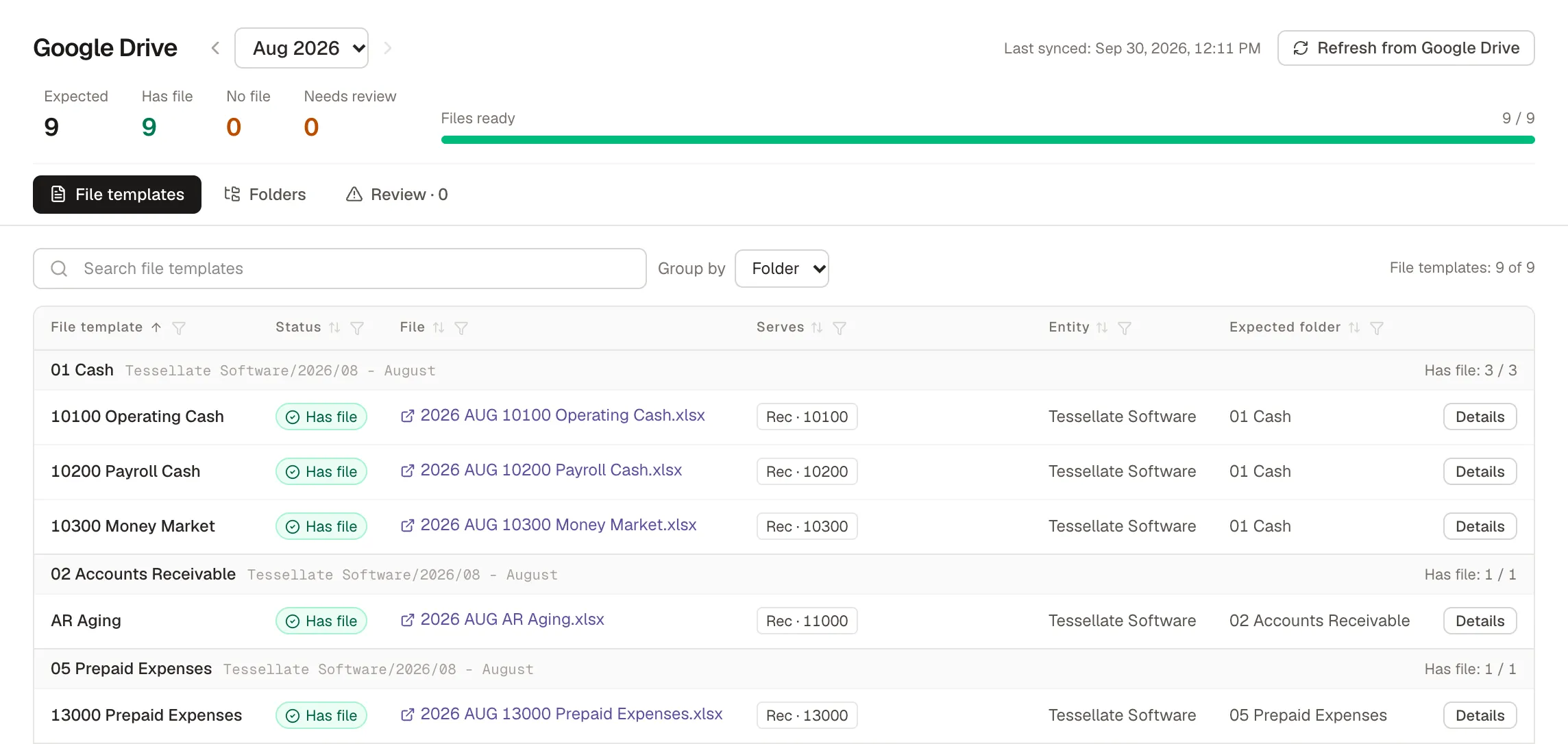
Header
Section titled “Header”- The period, chosen from the menu or with the arrows beside it.
- Last synced: when the store’s list of files was last updated.
- Refresh from Google Drive: updates the list of files, then looks for each file template’s file in every open period. Needs permission to refresh the file store, which preparers have.
- The counts — Expected, Has file, No file, Needs review. Click one to filter the list by it.
- Files ready: file templates with a file, out of all expected.
Refresh
Section titled “Refresh”A refresh runs every hour, and when someone clicks Refresh from Google Drive. For every period not yet closed, it:
- attaches a file to each file template with Attachment set to Automatic and no file yet, where exactly one file in its folder fits;
- sends a file template to Review where more than one file fits;
- reads a new workbook’s cell tags, and sends it to Review where a tagged account’s reconciliation has no file template for its support;
- records a changed file on the timeline of each reconciliation using it, and reads its support figure again where the reconciliation isn’t approved; see When figures change after approval.
File templates
Section titled “File templates”The list has one row per file template expected in the period.
| Column | Meaning |
|---|---|
| File template | Its name. |
| Status | Has file, No file or Needs review. |
| File | The period’s file. Click it to open it in the store. |
| Serves | The tasks that produce it and the reconciliations that use it. Click one to open it. |
| Entity | The entities it is for. |
| Expected folder | The folder the period’s file belongs in. Click it to open it under Folders. |
Group by groups the rows by Folder, Entity or None. A folder heading shows the folder’s full path and how many of its file templates have a file. Search, sort and column filters work as on the Close page, and are kept in the address.
The button at the end of each row opens the details: Details when it has a file, Add file when it has none, Review when it is waiting in Review.
Details
Section titled “Details”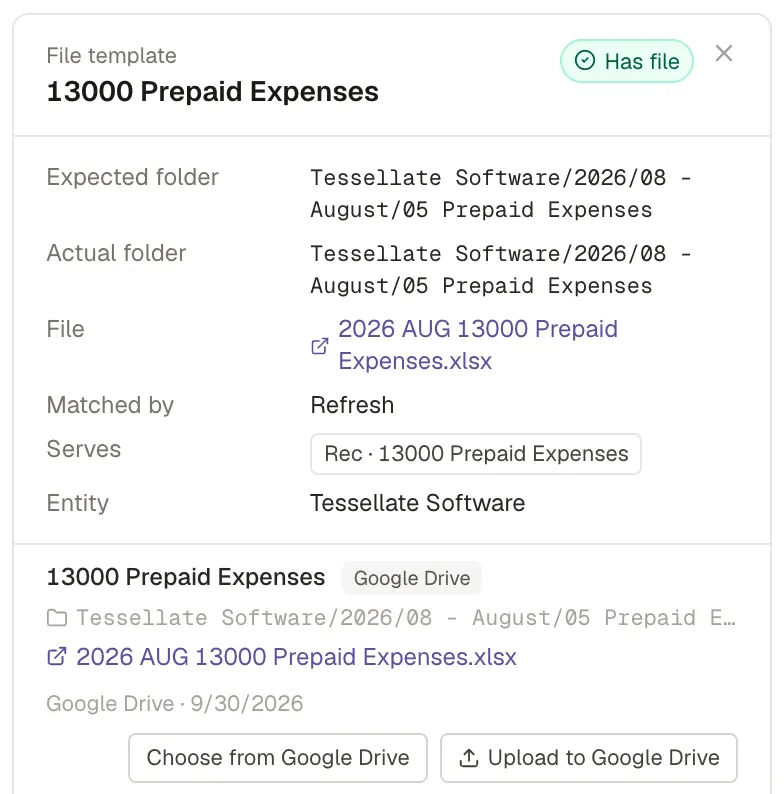
| Field | Meaning |
|---|---|
| Expected folder | Where the period’s file belongs. |
| Actual folder | Where the file is. Shown in amber when it isn’t the expected folder. |
| File | The file, linked to the store. |
| Matched by | Refresh (found by its rule) or Picked (chosen by a person). |
| Serves | The tasks and reconciliations, as in the list. |
| Entity | The entities it is for. |
| Review | Where it is waiting in Review, and why. |
Below the fields:
- Choose from Google Drive picks a file already in the store; Upload to Google Drive puts one into the period’s folder. Either needs permission to work on every task and reconciliation the file template serves, and isn’t offered once one of them is approved or its entity is closed.
- Found by and Attachment, as on the file template’s Google Drive tab; see File templates in the store. They can be changed here by people who edit task templates or set up reconciliations.
- History: the last three changes to the file — attached, edited in the store, sent to review.
- Open the file template opens its full page.
Folders
Section titled “Folders”The store’s folders, as a tree beside the open folder’s contents. For each folder, the tree shows how many of the file templates expected in it have a file for the period.
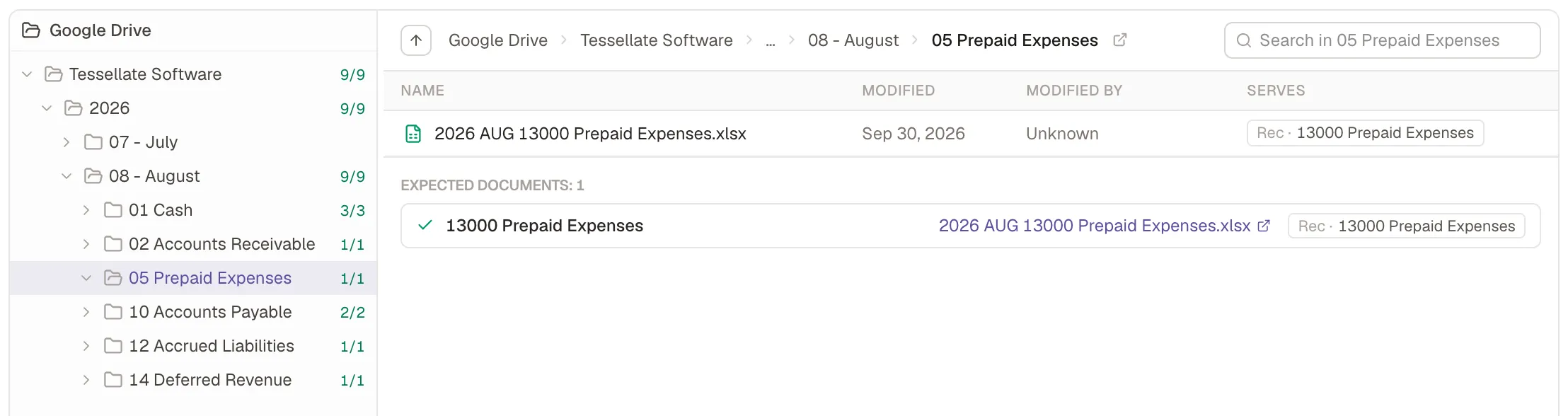
| Column | Meaning |
|---|---|
| Name | The file or folder. Folders show Files ready for the period. |
| Modified, Modified by | The last change in the store. |
| Serves | For a file that is a file template’s file this period, what it serves. |
A folder marked Restricted, and everything in it, is listed only for people with the See restricted folders permission; see Permissions.
Expected documents, below the files, lists the file templates whose file belongs in the open folder, with the file each has.
| Click | Opens |
|---|---|
| A folder in the tree | That folder. Click its arrow to expand it without opening it. |
| A folder in the list (double-click) | That folder. |
| A file in the list (double-click) | The file, in the store. |
| The path above the list | That folder; opens the one above. |
| The icon after the path | The open folder, in the store. |
| A Rec or Task under Serves | That reconciliation or task. |
| A file template’s name, under Expected documents | The file template. |
| A file’s name, under Expected documents | The file, in the store. |
The search box looks in the open folder; Search all of Google Drive, under the results, widens it to the whole store.
Review
Section titled “Review”Review holds what a refresh couldn’t decide. The tab shows how many are open for the period.
| Group | Means | To resolve |
|---|---|---|
| Multiple files match | More than one file in the folder fits the file template. | Use this file on the right one. |
| Tagged workbook, rec not set up | A new workbook is tagged for an account whose reconciliation has no file template for its support. | Set up, which makes a file template for the account and attaches the workbook. Later periods then find it on their own. |
| Account on more than one rec | As above, but the account belongs to more than one reconciliation. | Set up on the one it is for. |
Dismiss issue closes an item without attaching anything, and needs permission to refresh the file store. Using a file needs the same permission as choosing one; Set up needs permission to set up the account’s reconciliation.
File templates in the store
Section titled “File templates in the store”Each file template kept in the store has its settings on its Google Drive tab:
| Setting | Means |
|---|---|
| Folder each month | Where the month’s copy lives, written with month placeholders — for example Close/{YYYY}/{MM} - {Month}/Bank. |
| Found by | Workbook tag (the workbook contains a cell tag for each of its accounts), Name pattern (the file’s name fits a pattern), or None (someone chooses or uploads it). |
| Attachment | Automatic (FullSeam attaches the file it finds) or Manual (someone chooses it). |
When a file is attached automatically
Section titled “When a file is attached automatically”With Found by set to Workbook tag or Name pattern and Attachment set to Automatic, FullSeam looks in each open month’s folder:
- when Attachment is switched to Automatic, straight away;
- at each refresh: every hour, and when someone clicks Refresh from Google Drive.
Sync in Settings only updates the list of files. If exactly one file fits, it becomes the month’s copy. If several fit, nothing is chosen: the file template waits in Review for someone to pick.
With Attachment set to Manual, someone always chooses or uploads the file.
On a task or a reconciliation, a Drive-backed file template’s row offers Choose from Google Drive and Upload to Google Drive. An upload goes into the month’s folder; before it is saved, FullSeam warns if the file looks like another month’s, another account’s, or is going to a folder other than the expected one.
Browsing the store from FullSeam needs permission to browse the connected file store.