Egnyte
Where your organization keeps its files in Egnyte, FullSeam doesn’t copy them: a task’s deliverable or a reconciliation’s support is the Egnyte file itself, and opens in Egnyte. FullSeam reads a workbook’s figures from it; see Reading the support figure.
Add a file
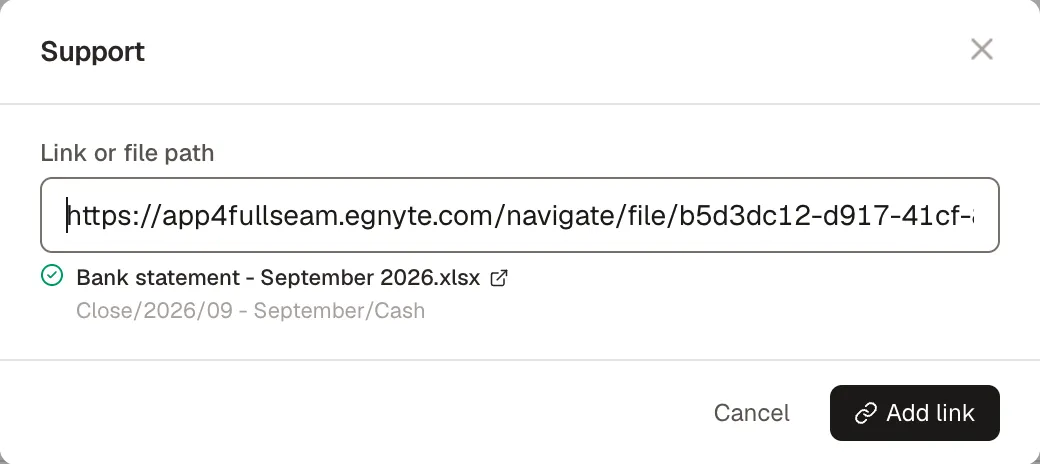
Section titled “Add a file”When adding a file, click Add link and paste a link to an Egnyte file or folder.
As you paste, FullSeam checks the link in Egnyte and shows the file’s name and folder under the box. If the file can’t be found, it says why. Click Add link to attach the file (Add on a task). Files can’t be uploaded to Egnyte from FullSeam.
If you attach a link that FullSeam can’t find, it is kept as a plain link and no figure is read from it. Add the link again once the file is in Egnyte.
Link a folder
Section titled “Link a folder”You can link a folder instead of a file, such as the folder that holds a month’s support. FullSeam reads what is in the folder each time it reads the support, so files added to the folder later are included.
- FullSeam looks for the account’s cell tag in the folder’s workbooks. It checks the first 25 files in the folder, in name order, and doesn’t look in subfolders.
- If the tag appears in more than one workbook, no figure is read.
- The figure is always read by cell tag. See Reading the support figure.
When a file changes in Egnyte
Section titled “When a file changes in Egnyte”FullSeam checks Egnyte for changes to the files you have linked:
- When a linked file is saved with new content, FullSeam reads it again, unless the reconciliation is approved.
- When a linked file is moved, it stays attached.
- When a linked file is deleted, FullSeam marks it as deleted.
- When a file is added to a linked folder, it becomes part of that folder.
FullSeam doesn’t find new files in Egnyte on its own. Add each period’s file by link.
FullSeam checks for changes every hour. To check now, click Refresh on the Reconciliations page, beside “Egnyte synced”, or on a reconciliation. People with permission to manage integrations can also click Sync under Settings → Integrations → File store.