Reviewing a task
1. Find tasks awaiting your review
Section titled “1. Find tasks awaiting your review”Open My Work and change Any role to I review. Tasks and reconciliations you can review now are under Ready for me; set Type to Tasks to see only tasks.
2. Review the work
Section titled “2. Review the work”- Open the task. Opening a submitted task starts the review if you are an assigned first reviewer with review permission and did not submit it yourself.
- Check the deliverable on the Files tab and the submission note on the Timeline tab.
- Click Review. The Next line shows where approval sends the task.
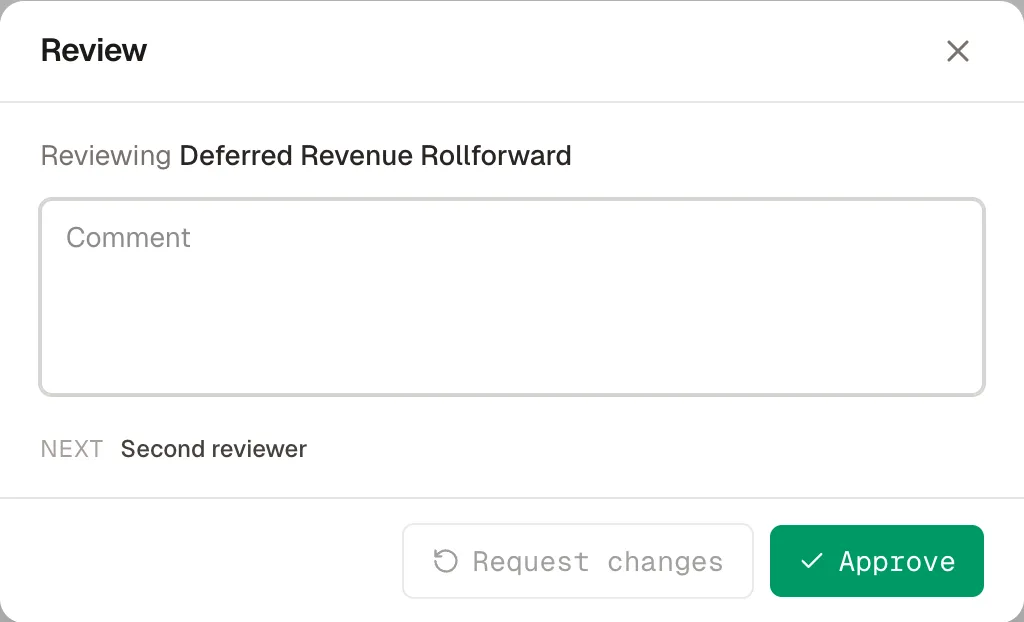
3. Approve or request changes
Section titled “3. Approve or request changes”- Approve sends the task to the destination shown under Next.
- Request changes requires a comment. The task returns to the preparer as Needs Changes, and a new review round starts.
You can also review from the Close page’s list: click the task’s status and choose Review… (or Review JE… for a journal entry). The same dialog opens. See Editing in the list.
4. Sign off the journal entry
Section titled “4. Sign off the journal entry”When the task is at JE Review:
- Check the entry in your accounting system.
- Click Review JE.
- Click Sign off, or enter a comment and click Send JE back. A returned entry goes back to the preparer as JE In Progress.
Approve several tasks
Section titled “Approve several tasks”- On the Close page’s List tab, select the tasks.
- Click Status, then Approve, Approve second review or Sign off JE.
- Check the tasks to be approved and the reasons any are skipped, then confirm.
Work you submitted
Section titled “Work you submitted”If you submitted the work, someone else has to review it; the task shows “You prepared this task, so someone else has to review it.” See Permissions.
Where your organization lets one person prepare and review, you can review work you submitted. The timeline then shows the approval as prepared by the same person.
Reviewing outside your assignments
Section titled “Reviewing outside your assignments”With permission to review tasks outside your assignments, the button on a task you are not assigned to reads Review (override), and the timeline records the review as an override.