FullSeam's chat
FullSeam’s chat is the AI assistant built into FullSeam. Each conversation with it is a chat. A chat works as the person who started it: it sees what they can see, and every change it makes is recorded under their name.
Chats are available to people whose role includes Use chats, in companies where chats are turned on. The standard close roles and Admin include it.
Opening a chat
Section titled “Opening a chat”| Where | What opens |
|---|---|
| Agents → Chats, in the sidebar | Your chats, newest first. You can also start a new chat that is not on any particular work. |
| The round button at the bottom right of every page, or ⌘J (Ctrl+J on Windows) | On a task, reconciliation, task template, agent, report or the flux page, that page’s chat, in a panel beside the page. On other pages, a new chat that is not on any particular work. Press ⌘J again to close the panel. |
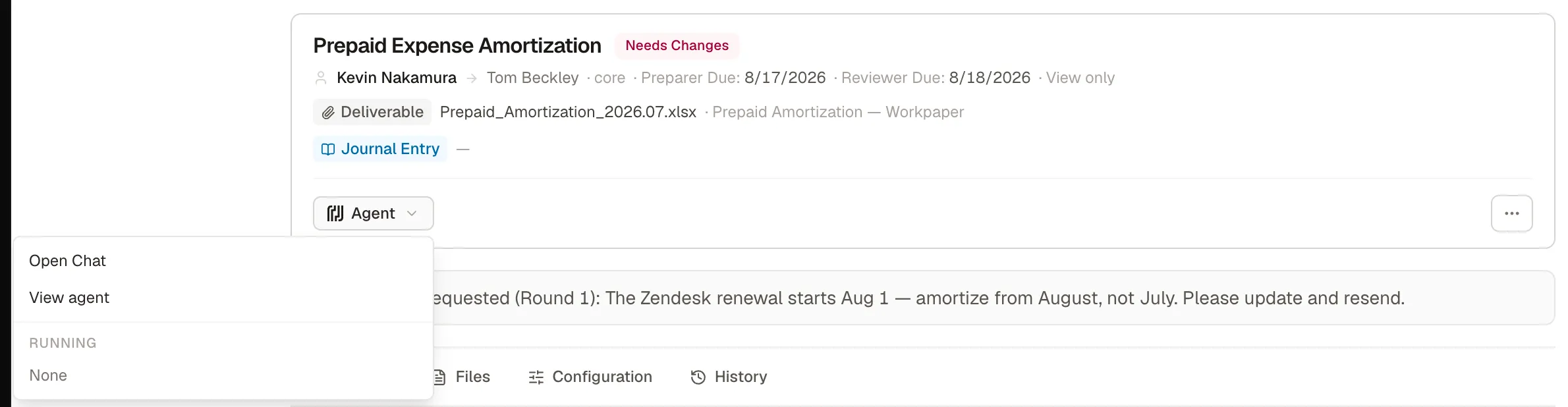
The Agent button at the top right of a task or reconciliation is about the agent that does the work, not the chat. On a task whose template has an agent, it has:
- Run agent runs the agent on that task, following its Runs as setting. As the Agent, the run waits in the queue, and you are taken to the agent’s Runs tab. As the User, your own chat opens on the task and asks you before each change. See Agent runs.
- View agent opens the agent’s page.
Where there is only one of these, the button is that one: View agent, or Set up agent on a task whose template has no agent yet.
A chat stays with the work it was started on, and is listed there. It stays open as you move to another page. When you write from a page that isn’t its work, the chat is told which page you’re on, and the box says Now on with that page’s name. On a reconciliation, a chat is about the task that prepares it. If two tasks prepare it, choose one under Task at the top of the menu.
While a chat of yours is running, the menu button shows how many are running. Each one is listed under Running, with Stop and Open.
The Chats page
Section titled “The Chats page”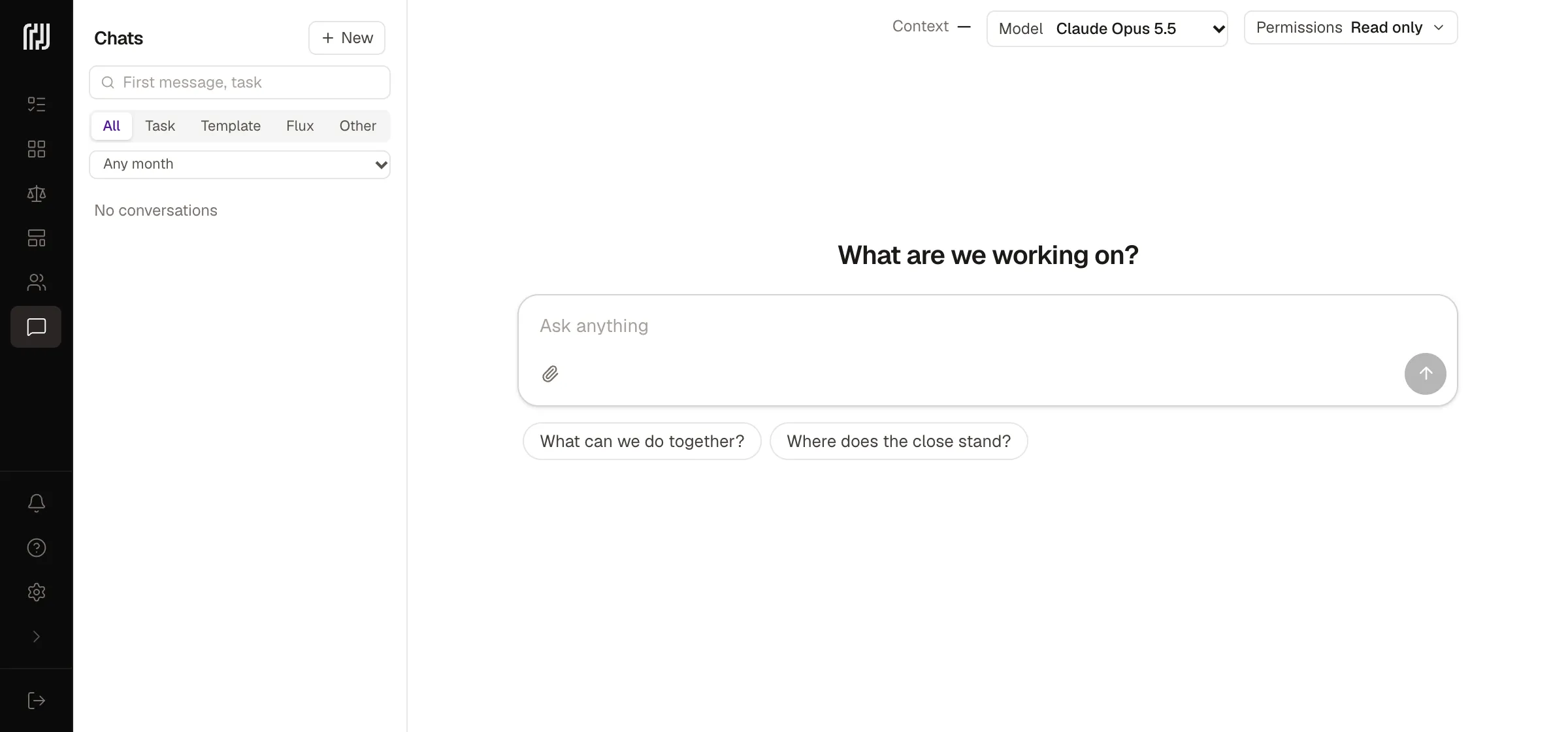
The Chats page lists every chat that has been sent a message, grouped by day. Each row shows the chat’s title and the work it is on. Search looks in first messages and task names. Type narrows the list to Task, Template, Agent, Flux, Report or Other chats, and the month menu narrows it to one period. A blue dot marks a chat that is running, and an amber dot marks one that is waiting for an answer.
A new, empty chat can offer a few questions to start with, depending on the work and where it stands. Click one to send it. If it leads to a change, such as “Set up the agent”, the chat is set to Read and write as it is sent.
What a chat can see
Section titled “What a chat can see”A chat can read whatever the person who started it has permission to see:
- tasks, with their files, comments and timeline, and last month’s version of each task;
- task templates, their agents and project files;
- reconciliations, the chart of accounts, and balances by month;
- ledger entries from your accounting system, for people who can see ledger detail;
- your file store’s files, by name and link for people who can browse it, and their contents with Let chats read the file store;
- the flux analysis and its explanations;
- company notes, and these help pages;
- your company’s other systems, with Read connected systems. See Connectors.
Restricted folders need their own permission; see Restricted folders.
A chat can also run calculations and build workbooks in a workspace of its own, except a chat started from the flux page. A file it makes appears in the conversation for you to download.
What a chat can change
Section titled “What a chat can change”A chat set to Read only changes nothing. A chat set to Read and write can make the kinds of change below. Each kind needs the matching permission in FullSeam, held by the person who started the chat, and each can be left off a chat under Permissions.
| Kind of change | What it allows |
|---|---|
| Comment on tasks | Add a comment to a task. The comment also goes to the task’s Slack thread, if your company uses one. |
| Attach and remove files | Attach a file or a link to a task, mark its deliverable, and remove a file. |
| Draft journal entries | Draft an entry on a task, or attach one that is already booked, if your company keeps entries in FullSeam. |
| Start and submit tasks | Start a task, submit it for review, take it back, and mark it N/A. |
| Add months and tasks | Create a month to close, and add tasks to a month. |
| Archive tasks | Archive a task with a reason, or restore one. This needs Archive and delete tasks. |
| Edit tasks | Change a task’s name, people, due dates, entities, section, tags, type and what it waits on, the same way its page does. Each field needs the permission it needs on the page. |
| Edit templates and agents | Create a template from a task, change a template the same way its page does, write its agent’s instructions and project files, and set up file templates. |
| Edit company notes | Write a company note. |
| Set up reconciliations | Set how an account is reconciled, how its documents are read, and which accounts a task prepares. |
| Prepare reconciliations | Enter the support figure and reconciling items, and submit a reconciliation for review or withdraw it. |
| Review reconciliations | Approve, return or reopen a reconciliation. A chat never approves a reconciliation its own person prepared. |
| Explain the flux | Draft explanations of the flux, and comment on them. |
| Run agents | Run agents on their tasks, and answer a run of yours that needs you. |
A chat never approves a task or a journal entry, and never posts an entry to your accounting system.
On a connected system set to Read and write, a chat can also use the system’s own tools that make changes. It asks you before each one. See Connectors.
Asking before a change
Section titled “Asking before a change”A chat set to Read and write asks before each change, unless that kind of change is set to Without asking. The request, headed “Allow this change?”, names the action and shows what it would write, such as the task, the file, the comment, or an entry’s lines.
| Answer | What it does |
|---|---|
| Allow | Makes this one change. |
| Allow for remainder of session | Makes the change, and stops asking about that kind of change for the rest of this chat. Other kinds are still asked about. |
| Don’t allow | Leaves the change unmade. You can give a reason, and the chat reads it. |
| Stop run | Ends what the chat was doing. It is offered after Don’t allow. |
The chat waits until you answer.
A chat’s permissions
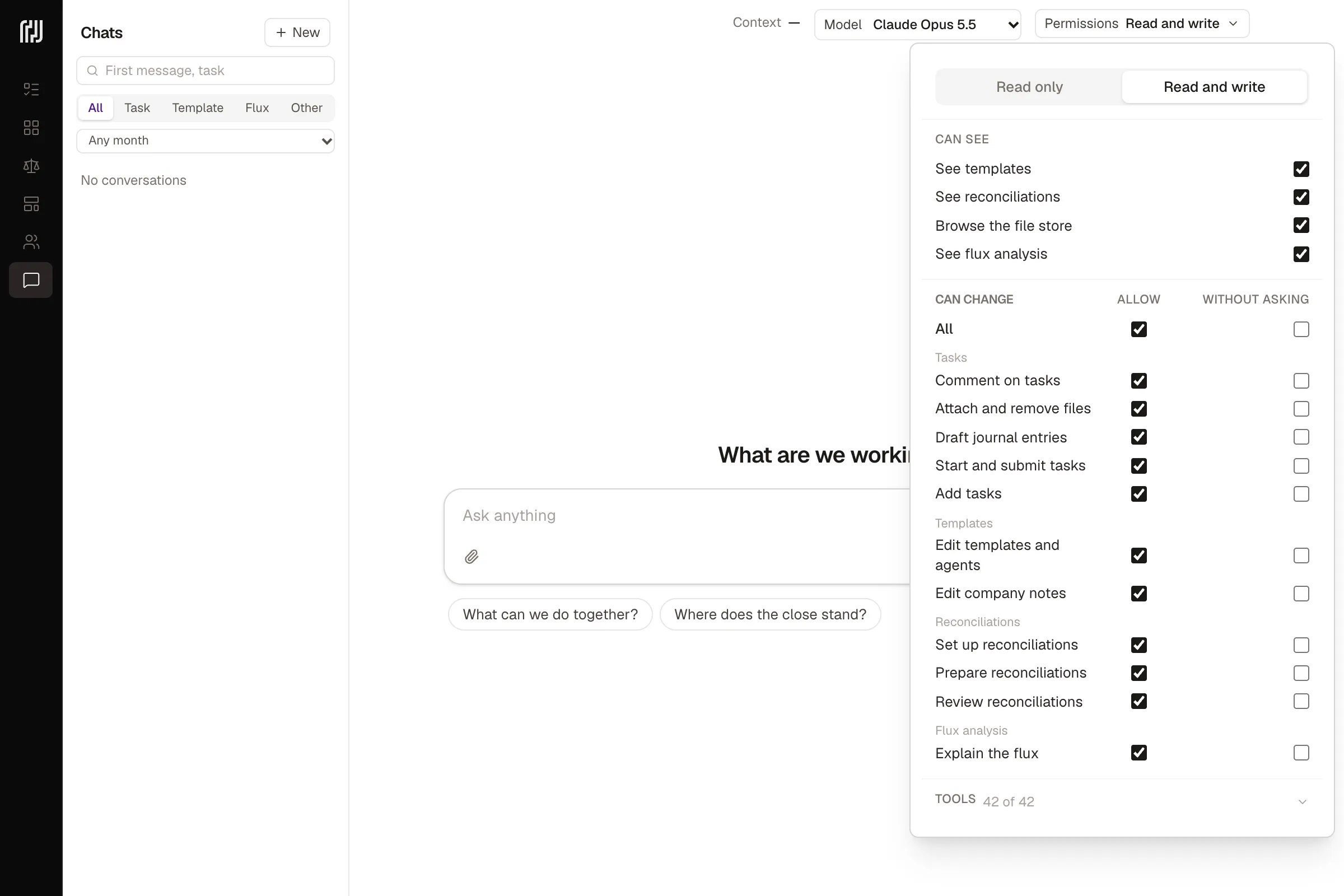
Section titled “A chat’s permissions”Permissions, at the top of a chat, shows Read only or Read and write. Click it to change what the chat may do. A change applies from the chat’s next action.
| Section | What it sets |
|---|---|
| Read only / Read and write | Whether the chat can change records. A new chat starts as Read and write, and asks before each change. |
| Can see | Which of your permissions to see things the chat uses. Clear one to leave it off this chat. |
| Can change: Allow | The kinds of change the chat may make. Clear one to leave it off this chat. |
| Can change: Without asking | The kinds of change the chat makes without asking you first. |
| Tools | The actions the chat has, under Reads and Changes. One that the choices above leave off is marked Off. |
These choices can only take things away. A chat never has more than the person who started it.
Read and write is only offered if your company lets chats change records and your role includes Let chats change records, as Chat Read and write does; see Permissions. Without both, the chat is read only and there is nothing to choose.
Changing any Allow box clears every Without asking box, so the chat goes back to asking before each change. The same happens when your roles change.
To add files to a message, click Attach files beside the message box. A file can be up to 250 MB.
| File | How the chat reads it |
|---|---|
| An Excel workbook (.xlsx, .xlsm) | Its sheets and rows. A password-protected workbook can’t be read, and neither can an older .xls file. Save it as .xlsx first. |
| A PDF | Its pages. A scanned page is read as a picture, a few pages at a time. |
| A Word document (.docx) | Its paragraphs and tables. A password-protected document can’t be read. |
| An image | As a picture. |
| A text file (.csv, .txt, .md, .json) | Its text. |
| A file in your file store | The same way, by its kind. |
| A file kept only as a link, such as one in Egnyte or SharePoint | Only the link. The chat does not open it. |
A chat reads the files attached to it, and the files on tasks its person can see. It reads a file in your file store only with Let chats read the file store, which the Chat roles include. Without it, the chat is given the file’s link.
A file the chat makes stays with the chat until it is attached to a task. The chat can attach it if it is set to Read and write, or you can download it and upload it to the task.
If a project file shows “Contents missing from storage”, the file is listed but its contents are no longer stored. Nobody can open it, including the chat. The chat is told which file is missing, and reads the rest.
Chats on the flux page
Section titled “Chats on the flux page”A chat started from the flux page, by someone who can have the chat draft there, is set to Read and write from the start. It can only change that flux: it drafts explanations and comments, and nothing else. It does not take attached files.
With accounts selected on the flux page, Chat offers an item named for how many are selected, such as Auto-Draft 3 Explanations. It drafts those explanations without a conversation, and without asking before each one. An account’s own panel offers Auto-Draft Explanation. Both are offered to people who can explain variances, whose role includes Use chats and Let chats change records, where your company lets chats change records. A draft stays a draft until a person accepts it.
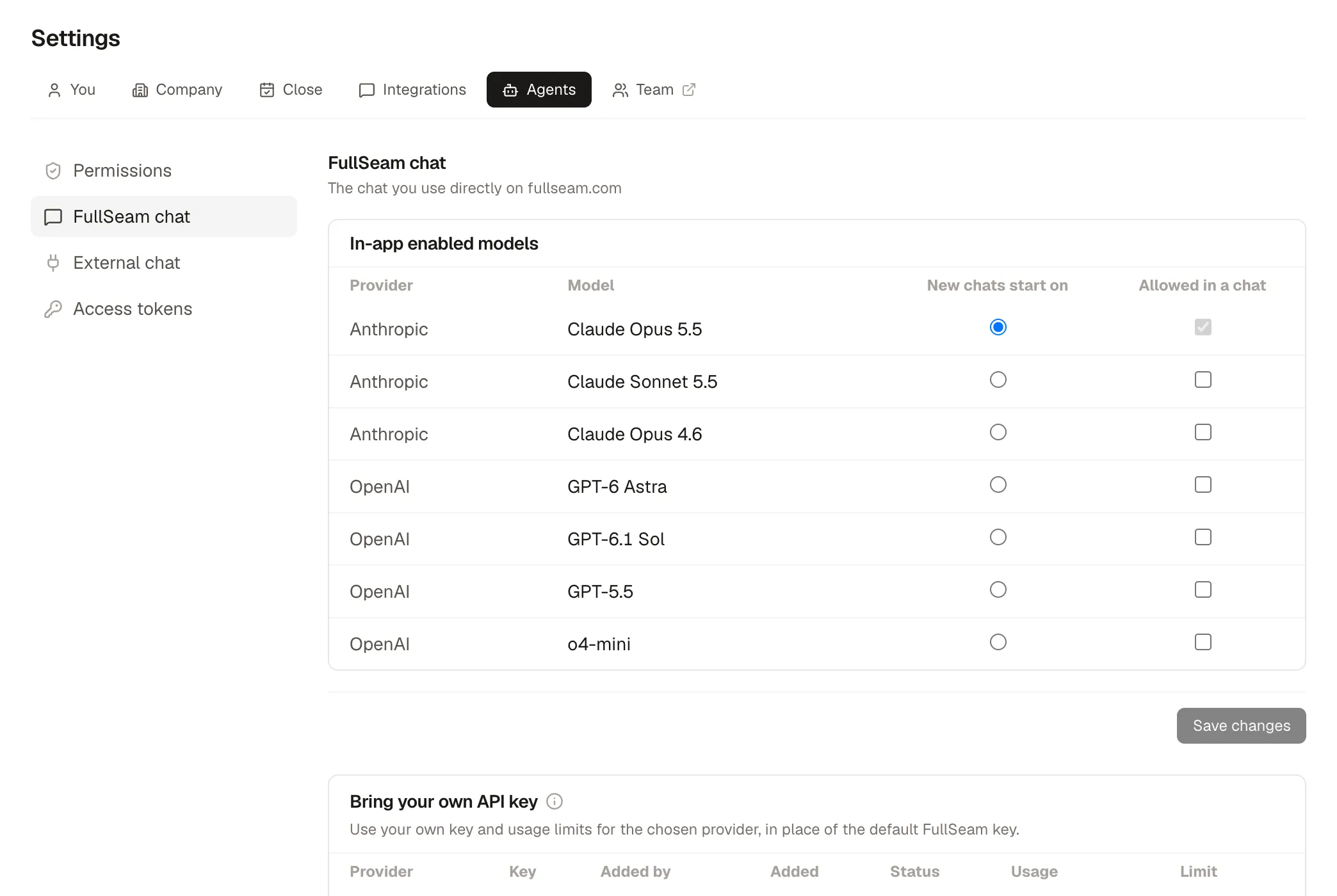
The top of a chat names the model it runs on. If your company allows more than one, you can choose there. The choice applies from the next message.
What your company allows
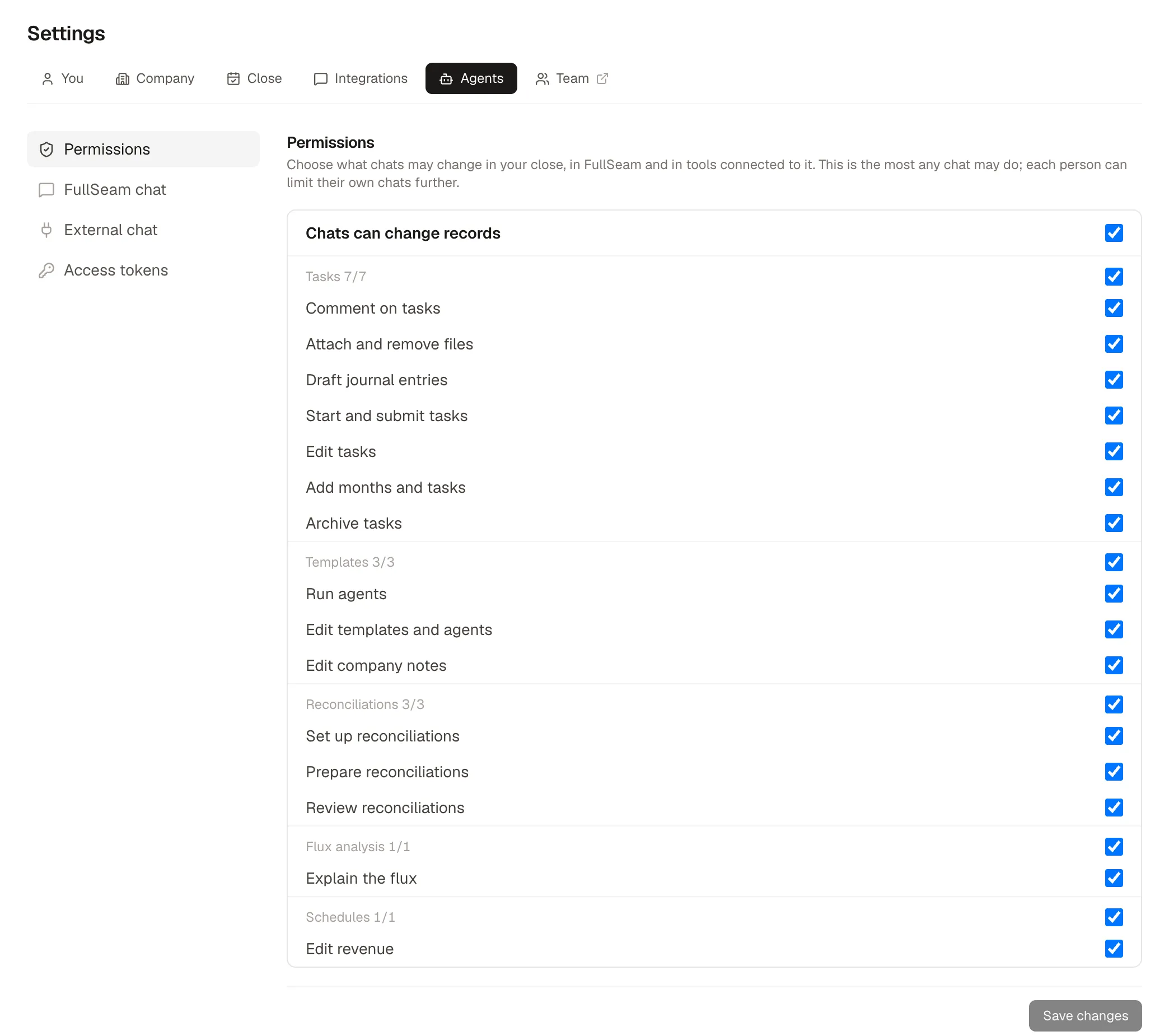
Section titled “What your company allows”People who can manage integrations set these under Settings → Agents.
| Section | What it sets |
|---|---|
| Permissions | Whether chats can change records at all, and which kinds of change any chat may make. This is the most any chat, external chat or access token can do. Each can be limited further. |
| FullSeam chat | The model new chats start on, the models allowed in a chat, and your company’s own API keys. |
A change the company doesn’t allow is refused with “This organization does not let a chat do this”, naming the kind of change. After a change to these permissions, chats ask again before each change.
Your own API key and usage limits
Section titled “Your own API key and usage limits”Chats run on a key FullSeam provides, unless your company adds its own under Bring your own API key.
| FullSeam’s key | Your own key | |
|---|---|---|
| Used for | Every provider marked FullSeam. | Every chat on that provider’s models, once you add a key for it. |
| Billed to | FullSeam. | Your account with the provider. |
| Limit | A monthly limit in US dollars, if FullSeam has set one. | The limits on your account with the provider. This usage does not count toward FullSeam’s monthly limit. |
The key table shows each provider’s status, usage and limit. Click the number of calls under Usage to see usage by month and model. A key is stored encrypted and is not shown again. To turn a key off, click the bin on its row. To replace it, choose its provider under the table, enter the new key, and click Replace.
When FullSeam’s monthly limit is reached, a chat answers “This organization has reached its monthly limit for the assistant. FullSeam support can raise it.” If your own key stops working, the chat says why, and FullSeam’s key is not used in its place.
Whether your company has chats at all is set by FullSeam.
A chat can’t be used while you are logged in as someone else. For who can read a chat, see Who can read a chat.