Preparing a reconciliation
1. Find your reconciliations
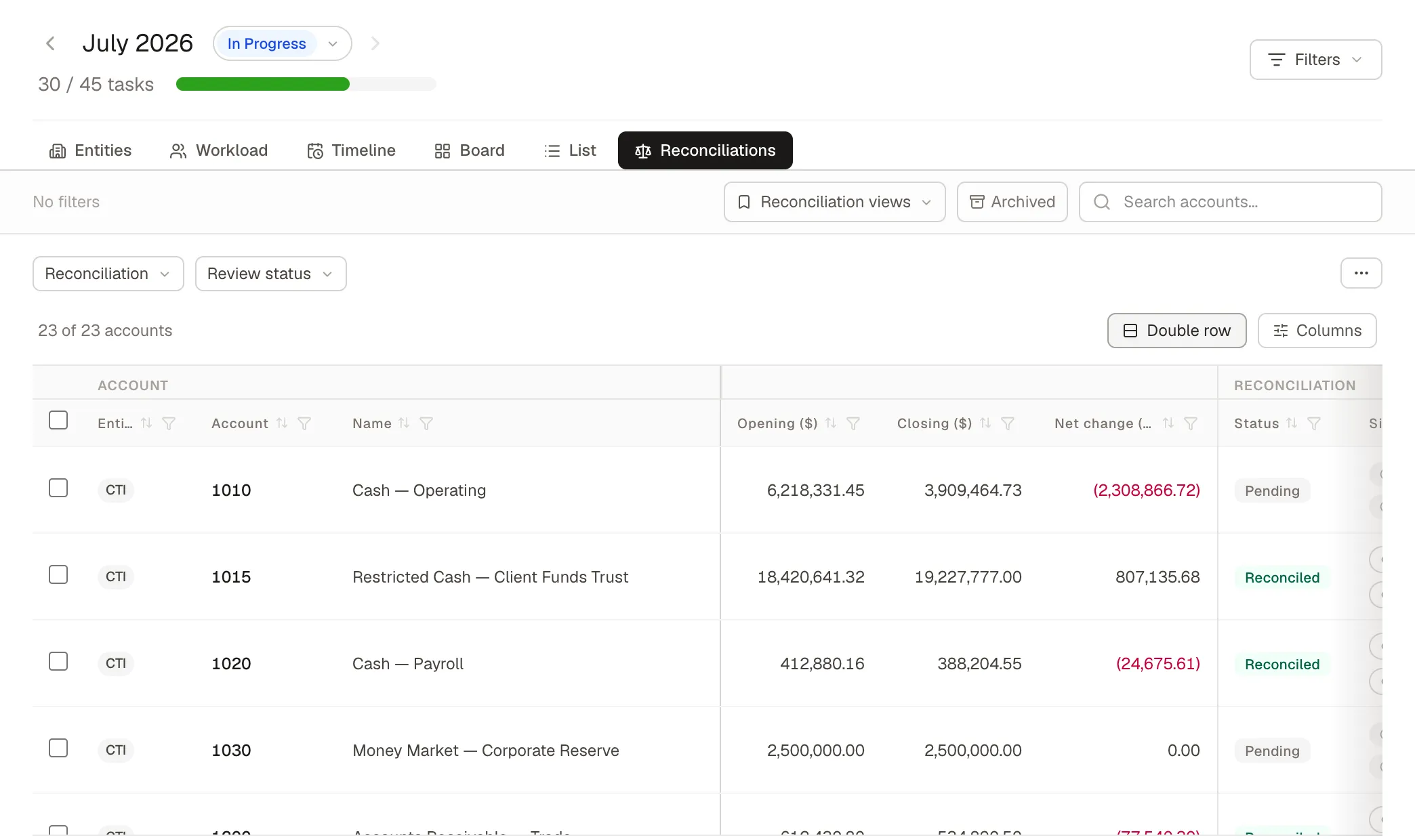
Section titled “1. Find your reconciliations”Open My Work: your reconciliations are under Ready for me, beside your tasks. Or open Reconciliations, click Filters and set Role to I prepare; then, in the menus under the toolbar, set Reconciliation to Pending or Unreconciled, or Review status to Changes Requested for work returned to you.
2. Attach the support
Section titled “2. Attach the support”See Managing support.
3. Enter the support figure
Section titled “3. Enter the support figure”If the figure is read from the document, check it; to override it, click it and use Enter manually. If the document is attached and the figure is empty, the workbook has no cell tag for the account, or has it twice; see Reading the support figure. Otherwise type it in the Per Support column and press Enter:
- Balance: the closing balance the support states.
- Activity: the month’s activity.
- No figure: nothing to enter; attaching the workpaper reconciles it.
On a reconciliation covering several accounts, enter each account’s figure on its own line. Graded on the total only, the figures are added up and only their total has to agree. A consolidated reconciliation takes one figure.
4. Explain any difference
Section titled “4. Explain any difference”If the status is Unreconciled, the difference is at or above the threshold. In the grid, open the Reconciling items cell, enter each known difference’s signed amount and description, choose when it clears, and click Add. Click the status to see the calculation.
See Reconciliation for the calculation.
5. Submit for review
Section titled “5. Submit for review”Click Submit for review on the reconciliation, or your name in the grid’s Sign-off column, or select several in the grid and click Review → Submit for review. If submission is refused:
| Message | Action |
|---|---|
| “Enter the support figure first.” | Enter it. For an Activity reconciliation, check there is an opening balance. |
| “Attach the workpaper first.” | Attach it. |
| “A reconciliation has to tie out before sign-off here.” | Explain the difference first. |
You can keep editing until the reconciliation is approved.
Withdraw a submission
Section titled “Withdraw a submission”Before the reviewer acts, the preparer can take a submission back with Withdraw. It returns to In Progress.
Record no activity
Section titled “Record no activity”After confirming the account had no activity for the month, select it in the grid and click Review → No activity. An Activity reconciliation gets 0.00; a Balance reconciliation gets its opening balance. It is offered only when every selected reconciliation takes a hand-entered figure; any that already have one are skipped.
For an account that isn’t expected to move, setup can supply this every month: see Assert no activity. Those reconciliations reach you only in a month the balance moved; enter the support figure and submit as usual.
Respond to requested changes
Section titled “Respond to requested changes”The reviewer’s points are on the Timeline tab. Answer each with Reply, make the changes, and submit again.