Reconciliations
Reconciliations in the sidebar opens the period in progress. Click an account number or name to open its reconciliation.
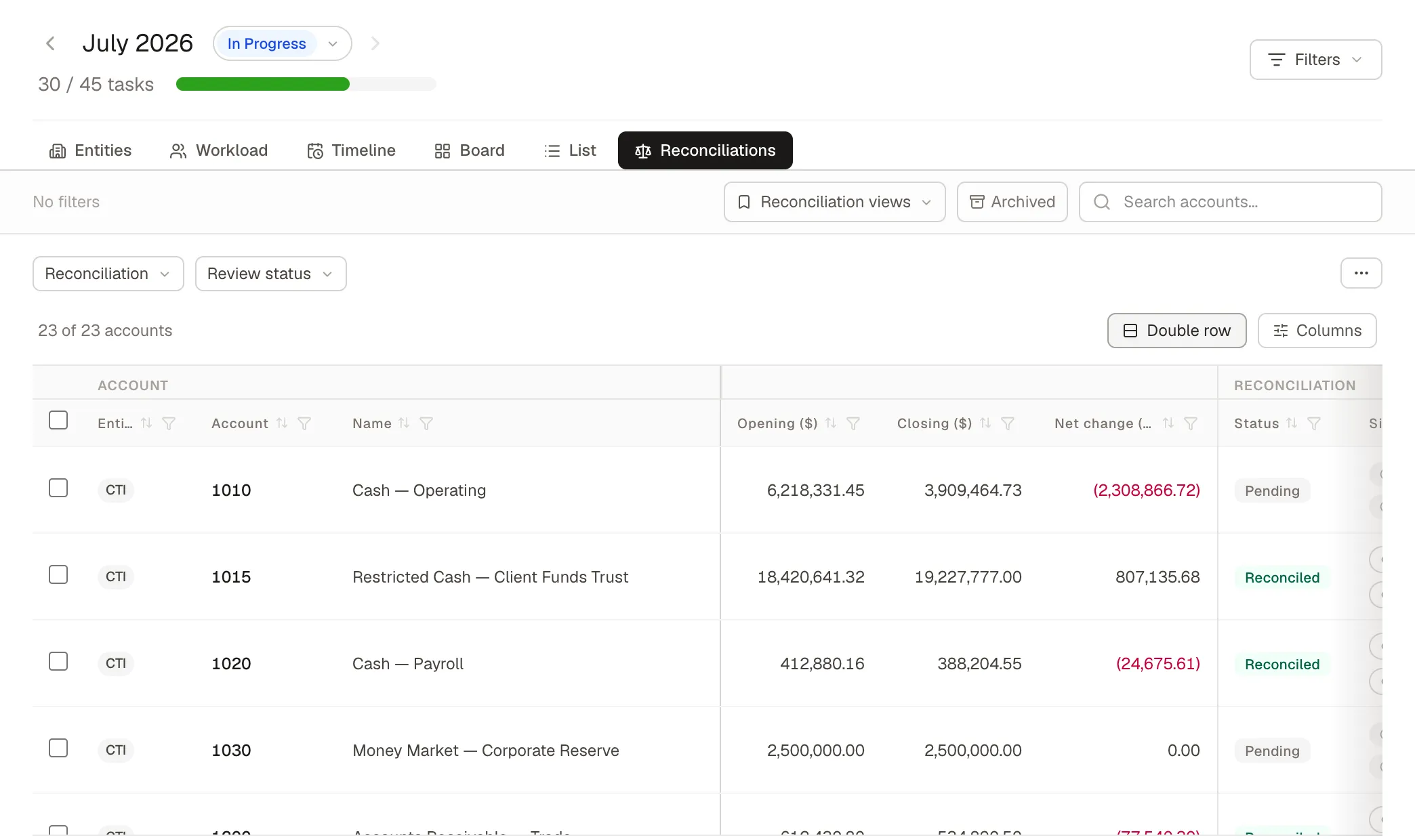
Columns
Section titled “Columns”| Column | Meaning |
|---|---|
| Opening, Closing | The balance per GL at the start and end of the month. |
| Status | Pending, Reconciled or Unreconciled. Click it to see the calculation. |
| Sign-off | The preparer above the reviewer; see Sign-off. Double rows only. |
| Review | Not Started, In Progress, Submitted, Changes Requested or Approved. Click it to comment, return, withdraw or reopen. |
| Per Support | The figure from the support. |
| Reconciling items | The total of open items. Click to add or clear items. |
| Difference | What is left; see Reconciliation. |
| Document | The support document. |
| Preparer, Reviewer | Who is assigned. |
| Preparer due, Reviewer due | When the account has due-date rules. Red once late. |
Double row, on by default, makes each row two lines tall, adds the Sign-off column beside Status, and moves Review after Difference. Turn it off for one line per row, with Review beside Status.
Columns shows, hides and freezes columns, as on the Close page. Filters narrows by person, by role (I prepare, I review, I prepare or review), to Ready for me or Waiting on others, and by due: Overdue, Due soon or both. Due goes by the preparer’s due date until the reconciliation is submitted, then the reviewer’s. The Reconciliation and Review status menus, under the toolbar, filter by status. Filters are in the address, and Reconciliation views saves them.
Sign-off
Section titled “Sign-off”In double rows, the Sign-off column shows the preparer above the reviewer:
| Badge | Means |
|---|---|
| Green, with a check | Signed. The name is who signed, or Automatic; hover for when. |
| Amber | Approved, and the figures have changed since. |
| White, with a circle | Yours to sign. Click it: the preparer’s submits, the reviewer’s approves. |
| Grey | Not yours to sign yet. Hover for the reason. |
Signing from the badge is the same as Submit for review or Approve. To withdraw, return or reopen, click the Review cell.
Configure reconciliations
Section titled “Configure reconciliations”How each account is reconciled is set once and applies every month. ⋯ → Configure reconciliations opens a list of every account, with its status:
| Status | Means |
|---|---|
| Not set up | Nobody has decided how the account is reconciled. |
| Set up | The account is reconciled each month. |
| Excluded | The account doesn’t need reconciling. |
On each row, Set up or Change opens the account’s setup, and Exclude marks it as not needing a reconciliation. Search and the Status filter narrow the list; Balances chooses which month’s figures it shows. Setting up accounts needs permission to set up reconciliations.
Set up several accounts
Section titled “Set up several accounts”Select accounts and click Set up reconciliation. The steps are those of one account’s setup, answered for all of them:
| Step | Sets |
|---|---|
| What is reconciled | Required or Not required, and Closing balance, Activity for the period or No figure. |
| Support | No file template, with Automatic extraction by each account’s cell tag, or Disabled. A file template is chosen one account at a time. |
| Materiality | A threshold for every selected account. Blank leaves each account’s own. |
| Owners | A preparer and reviewer for every selected account. Blank leaves each account’s own. |
| Review | Everything above. |
Where some selected accounts are already set up, Review says how many, and how many lose their file template. Not required archives the selected accounts’ reconciliations in open periods.
Change on a reconciliation’s Configuration tab opens the same setup for its account.
Account setup
Section titled “Account setup”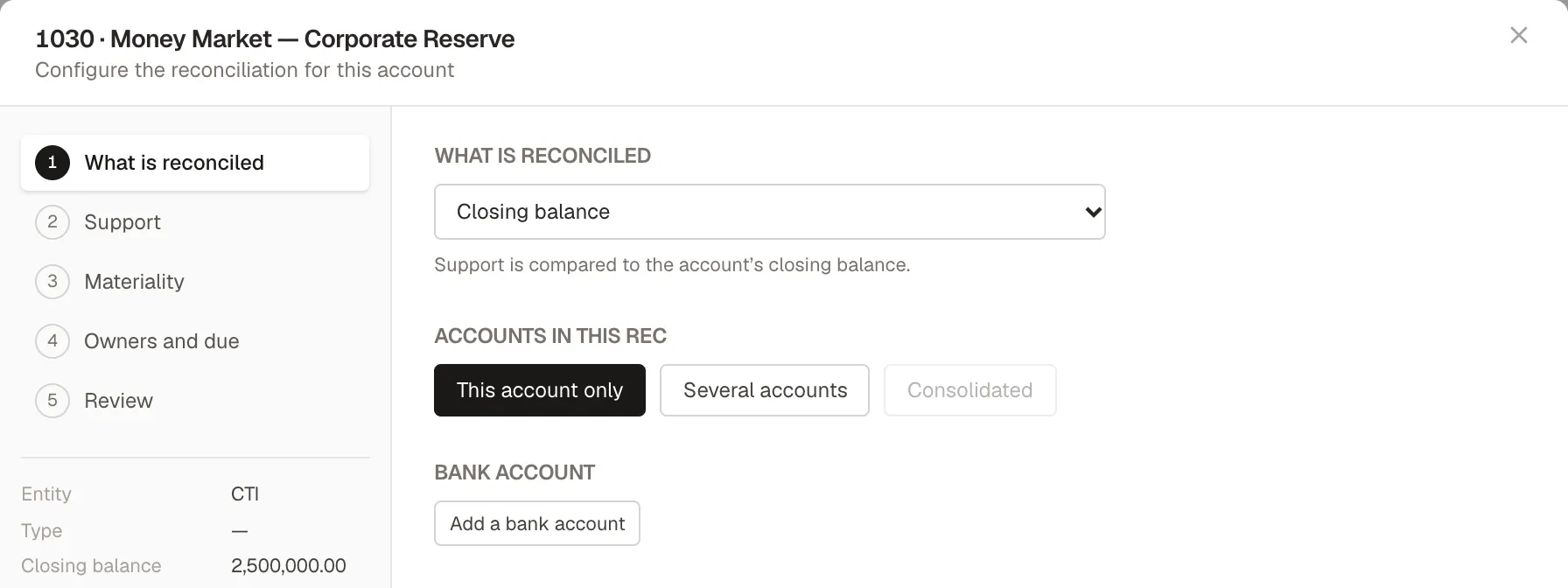
Setup is five steps. Any step can be opened directly; an account already set up saves from any step, and a new one is set up from Review.
| Step | Sets |
|---|---|
| What is reconciled | Closing balance, Activity for the period, or No figure. Which accounts the reconciliation covers: this account, several accounts, or one account consolidated across entities. |
| Support | Where the support comes from — see Managing support — and whether its figure is read from the document by the account’s cell tag; see Reading the support figure. |
| Materiality | The threshold; blank uses the entity default. Skipped for No figure. |
| Owners and due | The account’s standing preparer and reviewer, and when each month’s preparation and review are due. |
| Review | Everything above, to check before saving. |
A change of method (what is reconciled) applies to open reconciliations straight away. Changes to owners, threshold and due dates apply to open reconciliations only if you select Apply changes to open reconciliations not yet submitted; otherwise they apply to reconciliations created later.
Entity defaults — preparer, reviewer and threshold — are under ⋯ → Configure thresholds. The sign-off rules are in Settings → Close → Controls.
Managing support
Section titled “Managing support”The Support step chooses where an account’s support comes from:
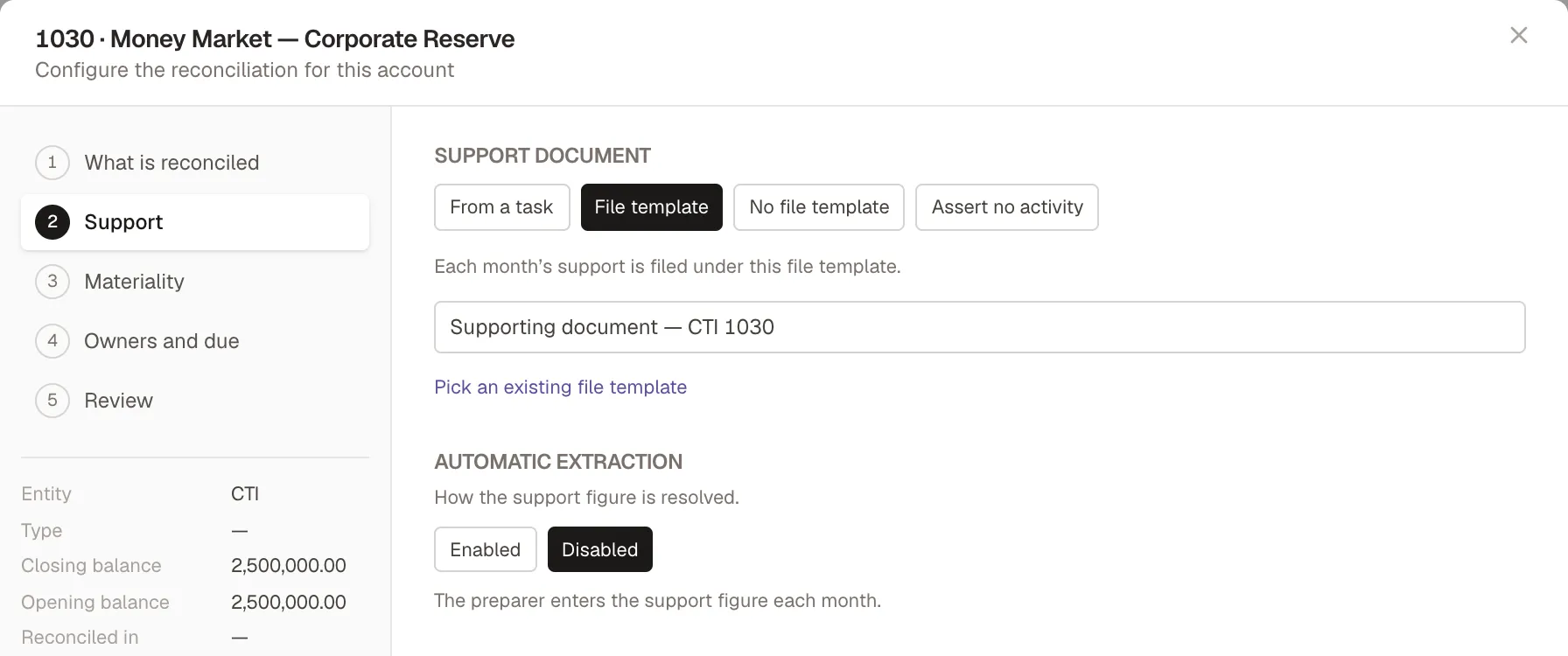
| Choice | Support is | Attach it |
|---|---|---|
| From a task | The file a close task delivers each month. | On the task, as its deliverable. |
| File template | A file template you pick, or a new one for this account. | Where the template is produced, or on the reconciliation if no task produces it. |
| No file template | A document attached to each month’s reconciliation, or the deliverable of the task it is worked in. | On the reconciliation, each month, or on the task. |
| Assert no activity | None. Each month’s support figure is the account’s opening balance. | Not needed; a document can still be attached on the reconciliation. |
Every reconciliation set up waits for a document, except one asserting no activity.
When you pick a task, setup shows the file template it delivers, or warns if it delivers none. The task picker lists this month’s tasks and task templates separately.
To attach support on the reconciliation, open its Sources tab, or use the Document cell in the list; see From the list.
Assert no activity
Section titled “Assert no activity”For an account whose balance isn’t expected to move. It is offered for a Closing balance or Activity reconciliation that covers one account; an account that covers several, or is consolidated, has to be saved as one account first.
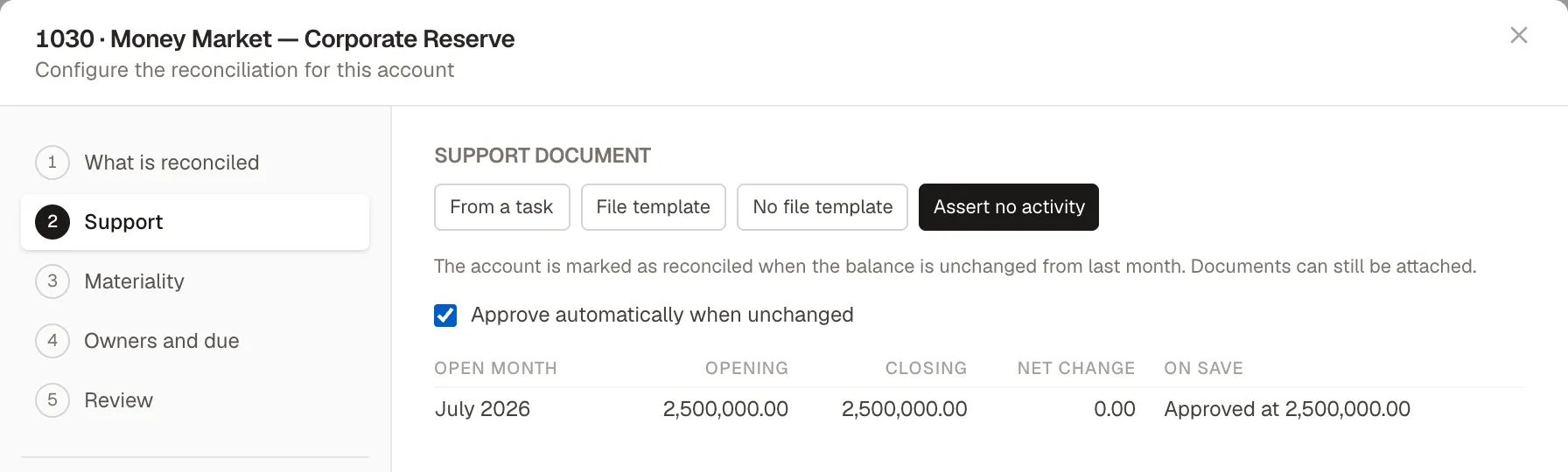
Under it:
- Approve automatically when unchanged approves a month whose balance didn’t move, with no approver. Not selected, that month goes to the reviewer.
- A table lists each open month’s opening balance, closing balance and net change. When you select Approve automatically when unchanged, the On save column shows the month the setup was opened from as Approved at its closing balance: saving approves that month in your name.
What happens each month is in Reconciliation.

Where your organization keeps its files in a store, the Sources tab adds files there instead:
- Google Drive and SharePoint: Choose from Google Drive and Upload to Google Drive, named after the store.
- Egnyte: Add link, checked in Egnyte as you paste.
Support figure
Section titled “Support figure”The support figure is the number the document states. Where it comes from is shown beside it on the reconciliation: Extracted (read from the document), Entered (typed by someone), No activity (asserted by the account’s setup), or Recorded (set another way).
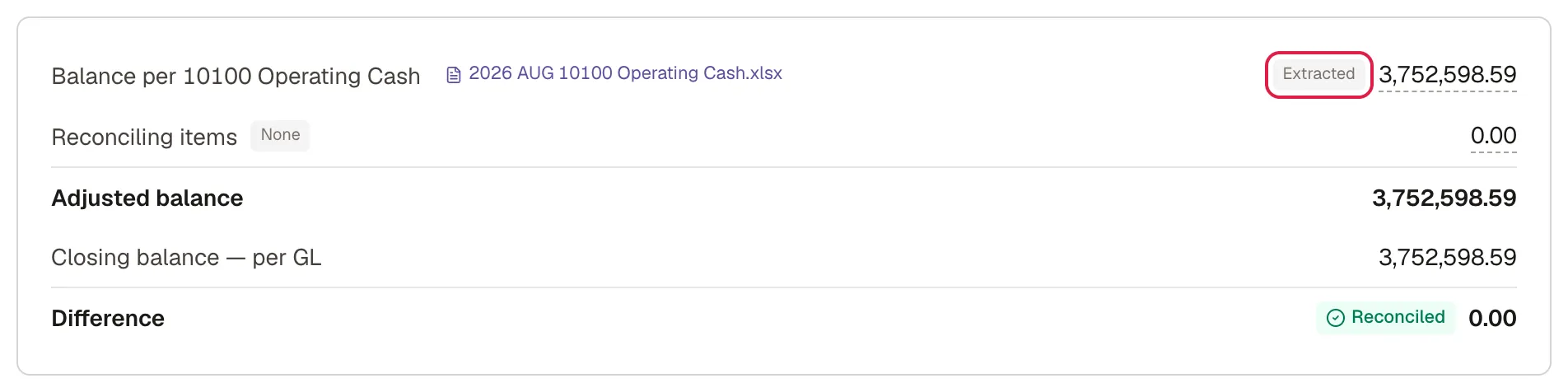
Click the source label to open the Extraction window:
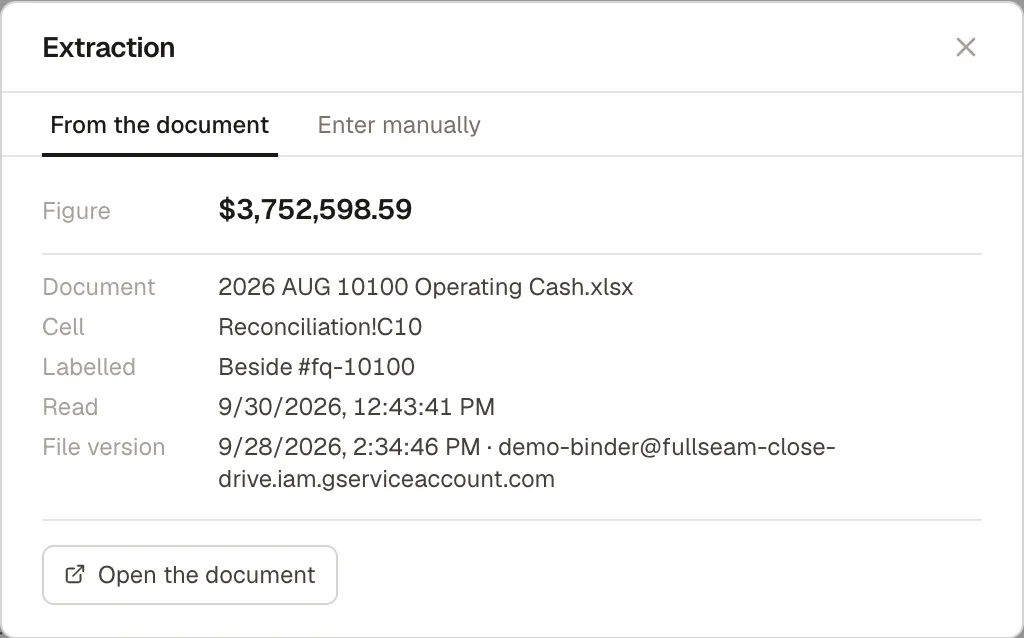
- From the document shows the document, and the cell or rows the figure was read from. Read again reads it now, while the reconciliation can still be changed.
- Enter manually replaces the figure with one you type. The earlier reading stays visible, marked superseded.
When the account’s Automatic extraction is Disabled, type the figure in the Per Support column, or click it on the reconciliation.
When Automatic extraction is Enabled, the figure is read from the document by the account’s cell tag, in the background, whenever the document changes; see Reading the support figure.
A figure entered before the current document arrived is flagged, so it can be checked.
From the list
Section titled “From the list”Support can also be managed without opening each reconciliation. In the Reconciliations list:
- Click a reconciliation’s Document cell to open the file already there, or to add one: Upload this period’s file or Link to where it is kept, or, with a file store, its own buttons, as on the Sources tab.
- Where the figure is read from the document, click the Per Support cell to see where it was read from — the file, sheet and cell — or, with no document yet, to add one.
- Where the figure is typed, type in the Per Support cell. Commas, a
$and brackets for a negative are accepted:(998,871.96)is entered as −998,871.96. The icon beside it shows who entered it.
A figure read in the background appears in the list on its own.
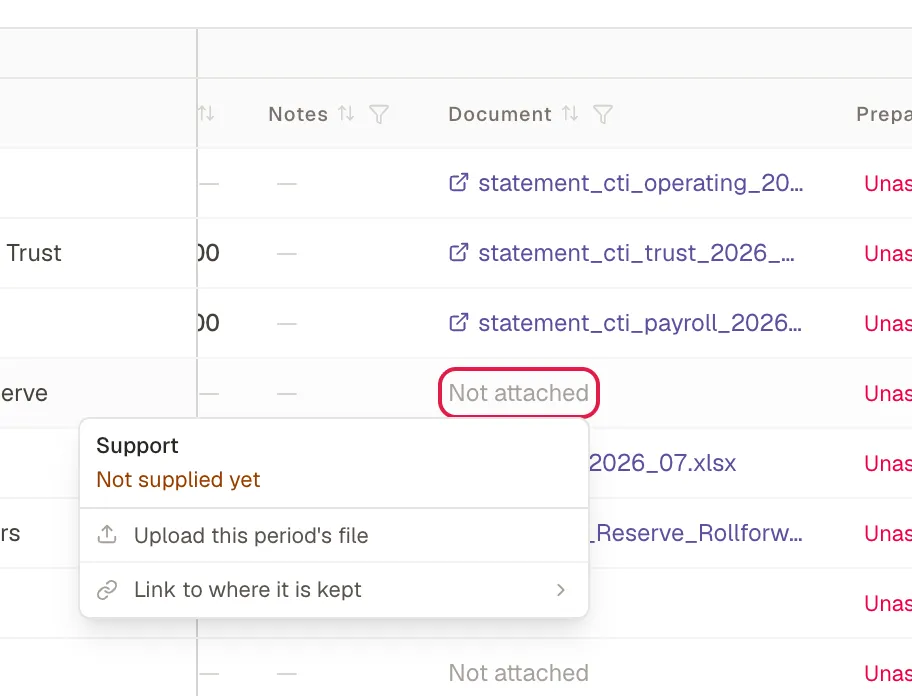
Bulk actions
Section titled “Bulk actions”Select reconciliations and use Review to submit, withdraw, approve, return or reopen them, or to record No activity on accounts that didn’t move. The result lists any that were skipped, and why. Set preparer… and Set reviewer… reassign them. The person also becomes the account’s standing owner, so next month’s reconciliations start with them. Tick This month only for cover. Other open months don’t move. Default puts the rec back on the account’s standing owner, or the fund’s. ⋯ → Export to Excel downloads the grid; see Downloading.